Team member working hours
If several people on your team offer private appointments, each of them can have their own working hours. You choose which team members offer each appointment service, and clients can book a specific person or anyone who is free.
Each team member’s calendar is separate. If a client books one instructor at 9:00 AM, another instructor can still be booked at 9:00 AM by someone else.
Owners and managers can set up hours and services for the whole team. Instructors can change their own working hours.
Working alone? Nothing changes for you. Your hours work as described in Set working hours.
Step 1: Invite your team
If you haven’t yet, invite the people who will run appointments. See Invite team members.
You can set up hours and link services for someone right after you invite them, before they accept the invite. Clients can book them straight away.
Step 2: Set each team member’s working hours
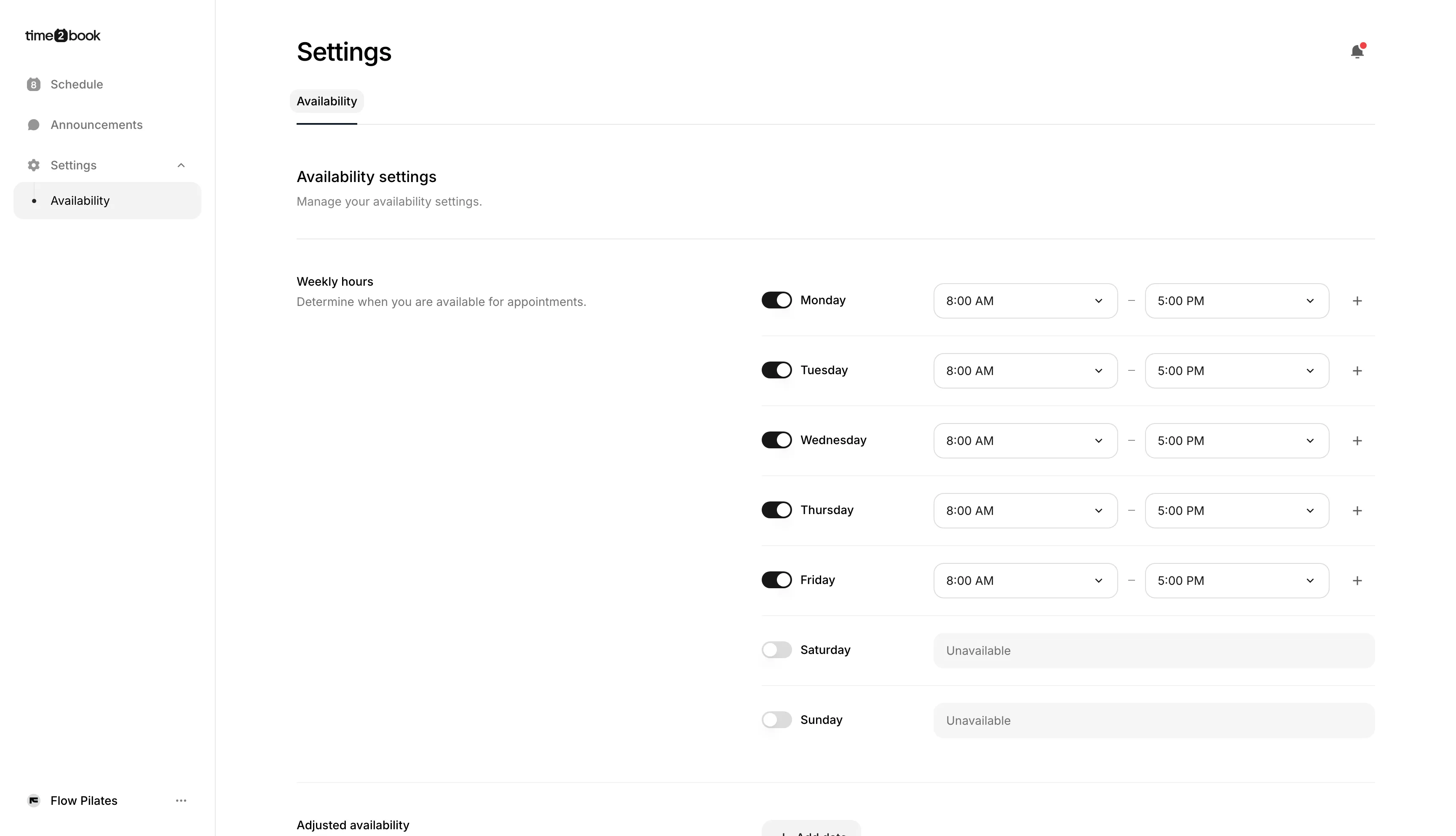
- From the left-hand menu, click Settings → Availability.
- Under Team availability, you’ll see everyone on your team, including you. Click a team member.
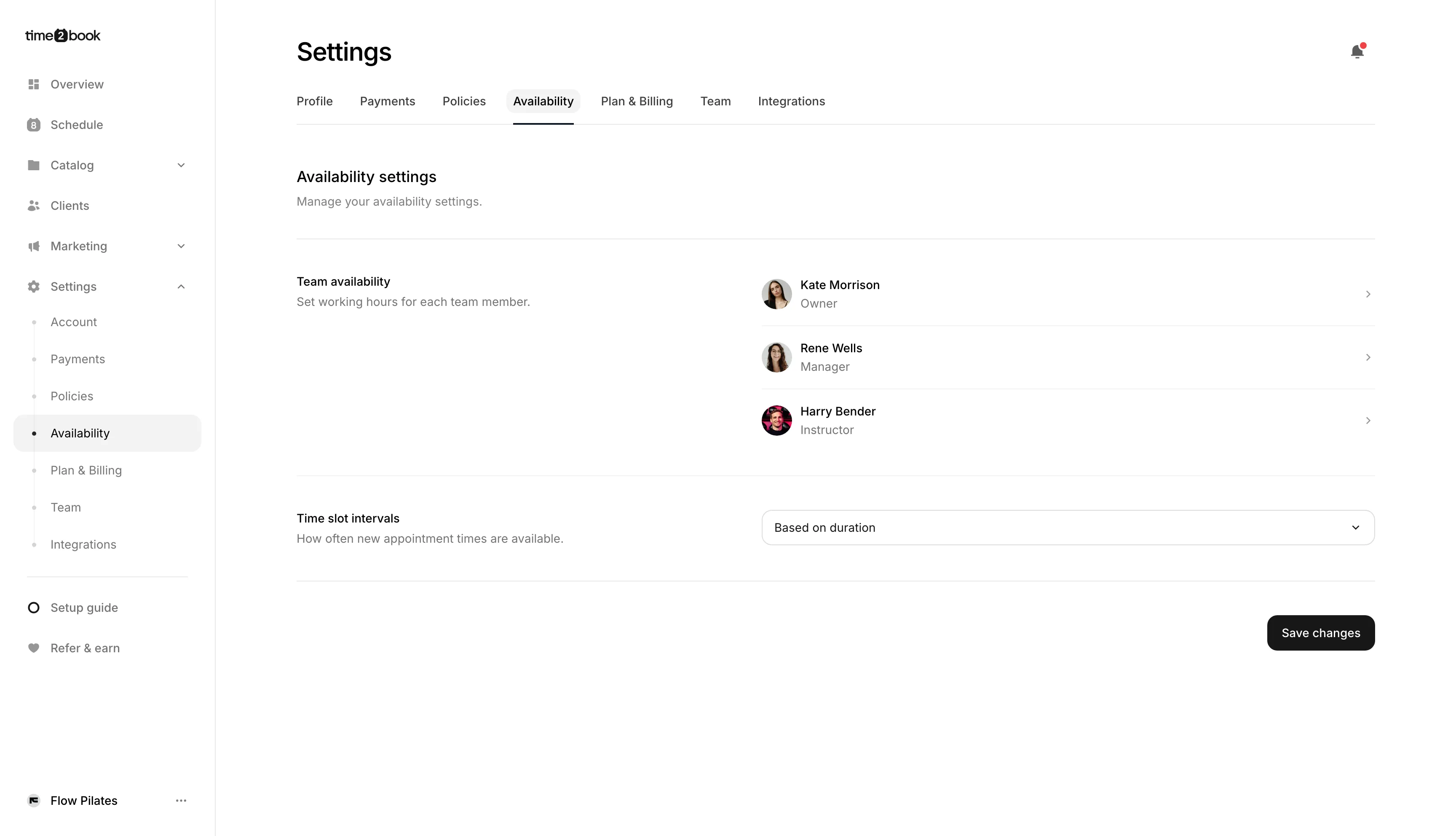
A panel opens with that person’s hours:
- Turn on the days they work.
- Set start and end times for each day. Use the + button to add a second time range, for example a morning and an evening shift.
- Under Adjusted availability, click Add date for holidays, days off, or extra hours on a specific date.
- Click Save changes.
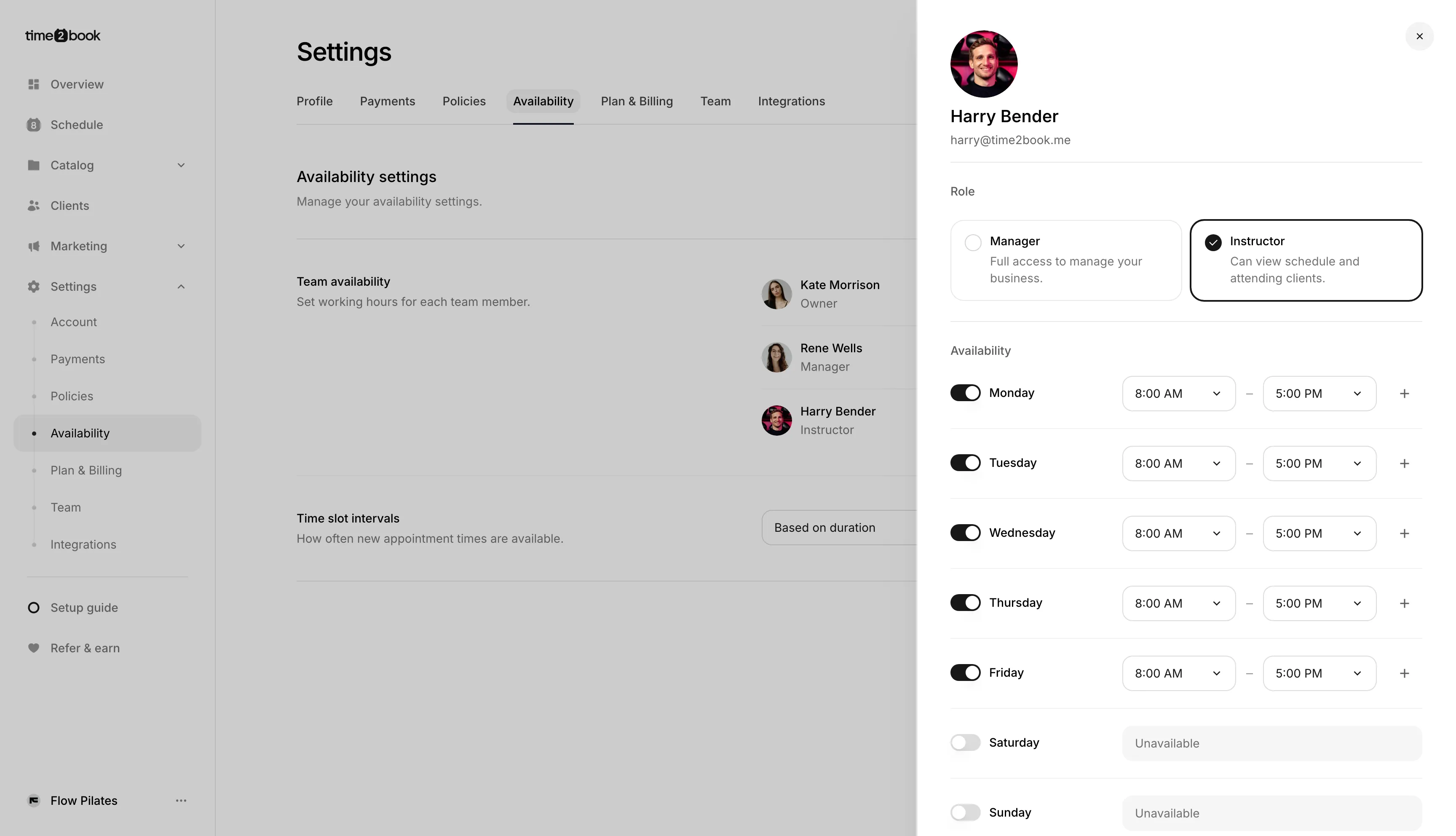
New team members start with no working hours, so clients can’t book them until you set some. When you invite someone, this panel opens right away so you can do it then.
The owner’s hours are your business hours. Appointment services with no team members linked to them use these hours too.
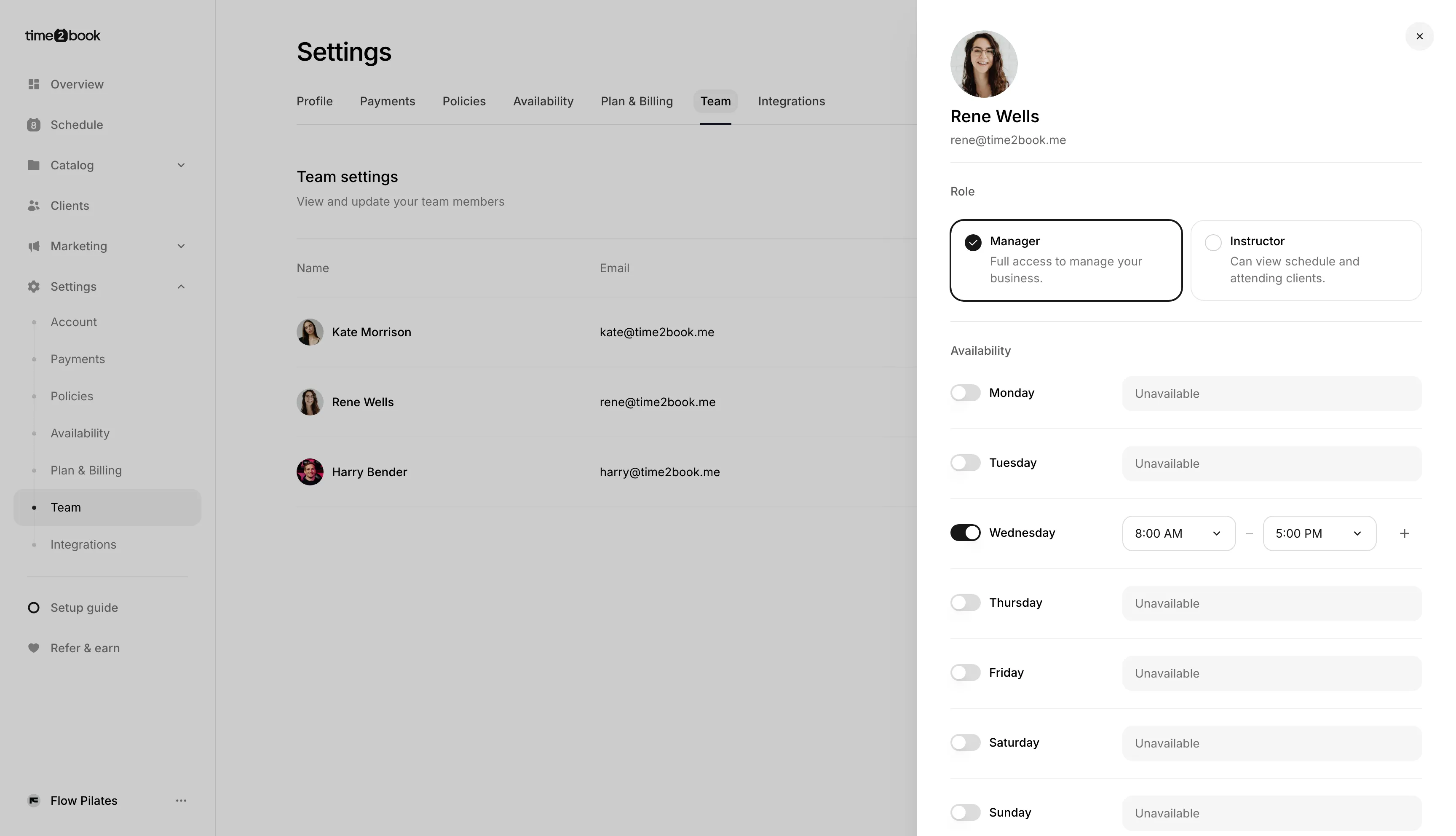
You can also open the same panel from Settings → Team by clicking a team member. There you can change their role at the same time.
Step 3: Link team members to an appointment service
- From the left-hand menu, click Catalog → Services.
- Open an appointment service, or click + to create one. See Create an appointment.
- In the Team members section, click Select team members under Service providers.
- Tick everyone who offers this service.
- Click Save changes.
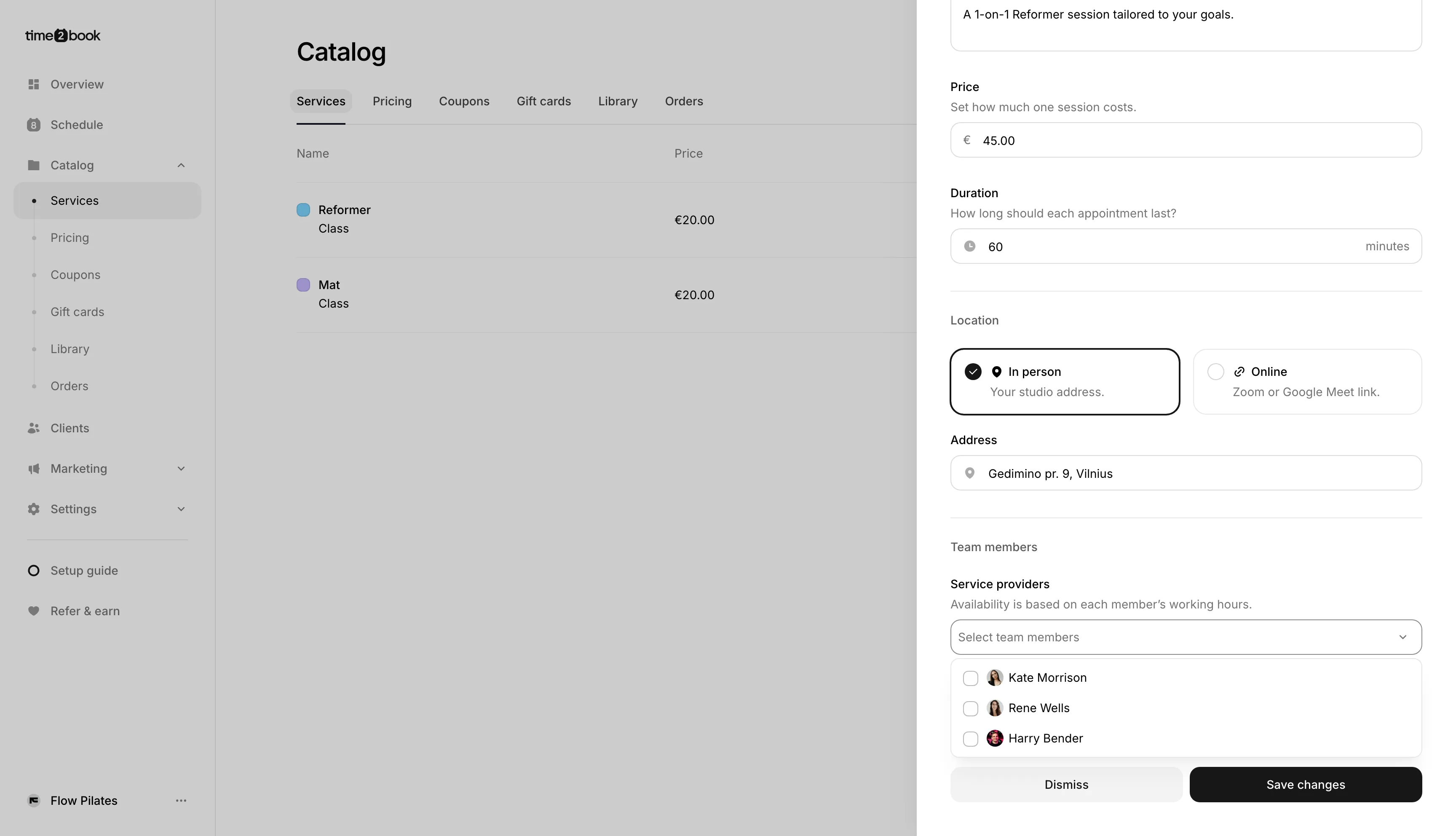
Clients can now book this service during the working hours of any team member you ticked. If you don’t tick anyone, the service uses your business hours.
The Team members section only shows for appointment services when you have more than one person on your team.
How clients book a team member
On your public profile, clients open the appointment and click Choose time. If more than one team member offers the service, they’ll see a team member picker above the dates.
- Anyone – Shows every time at least one team member is free. The booking goes to one of the team members who is free at that time.
- A team member’s name – Shows only that person’s free times.
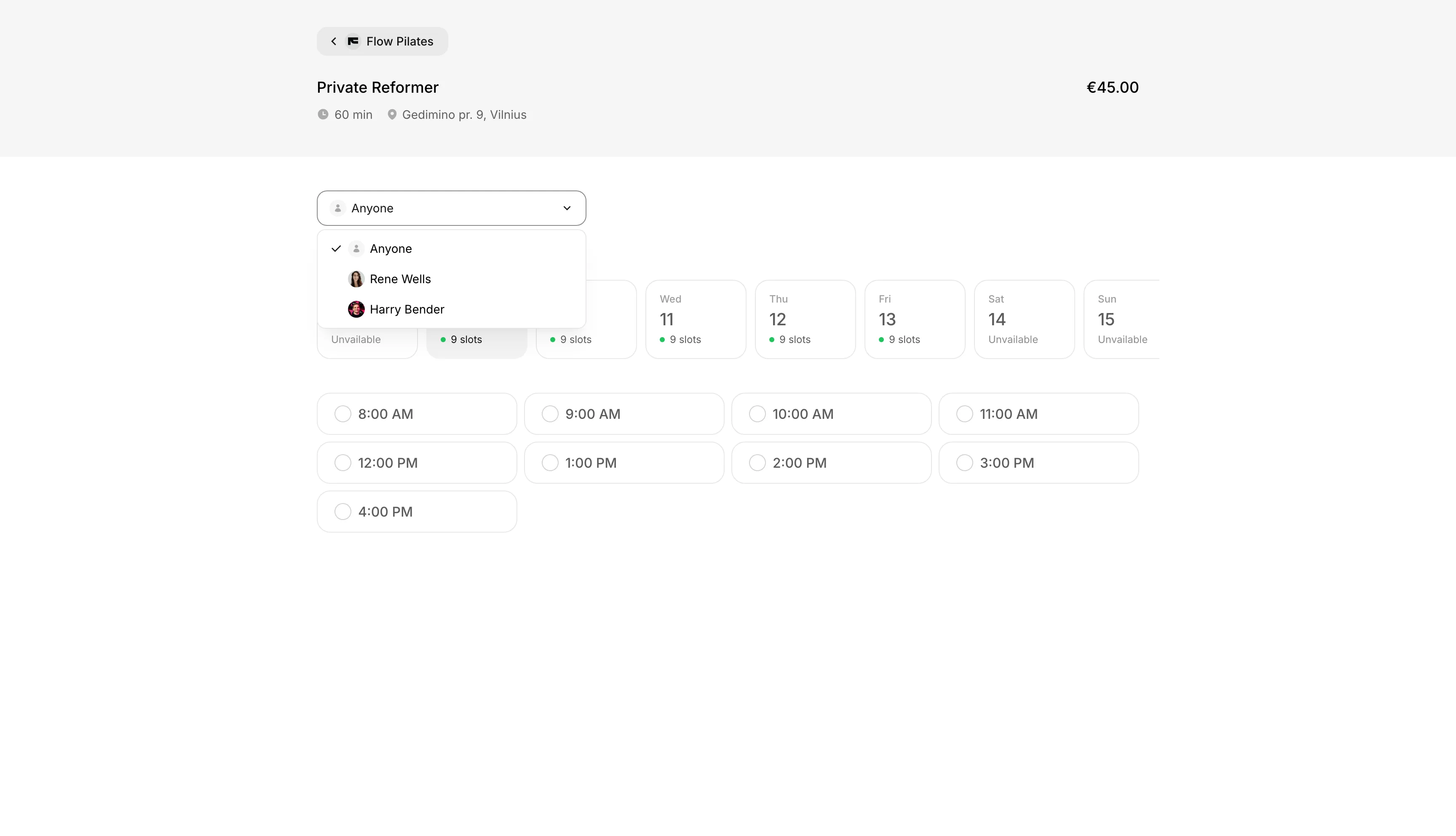
When a client picks a team member, days that person doesn’t work show as unavailable.
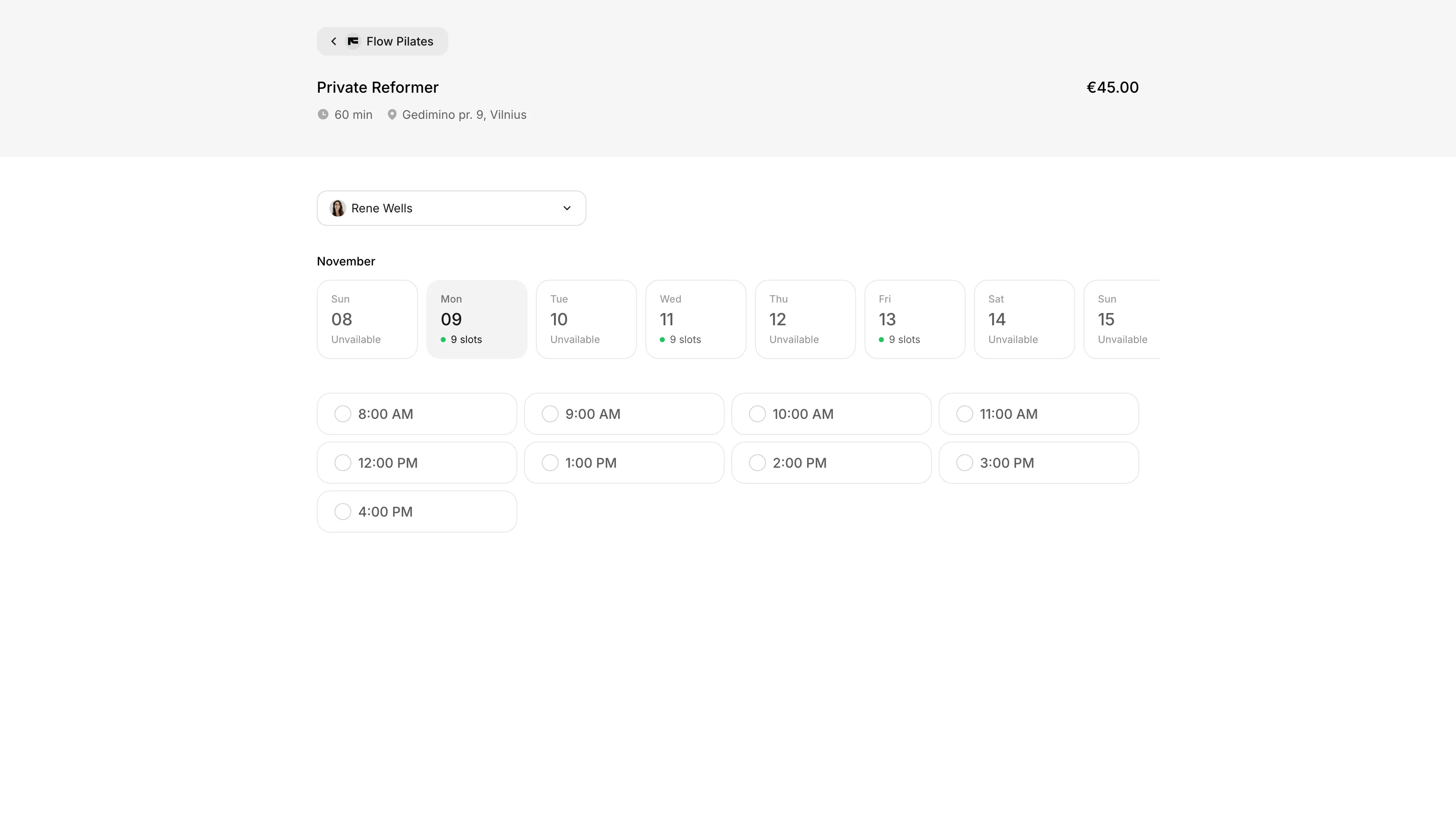
The team member’s name is shown on the client’s booking and on your schedule.
Change who an appointment is with
You can move a booked appointment to another team member from your schedule.
- From the left-hand menu, click Schedule.
- Click the appointment to open Booking details. The Instructor row shows who it’s with.
- Click the × next to their name to remove them.
- Click Add instructor and choose another team member.
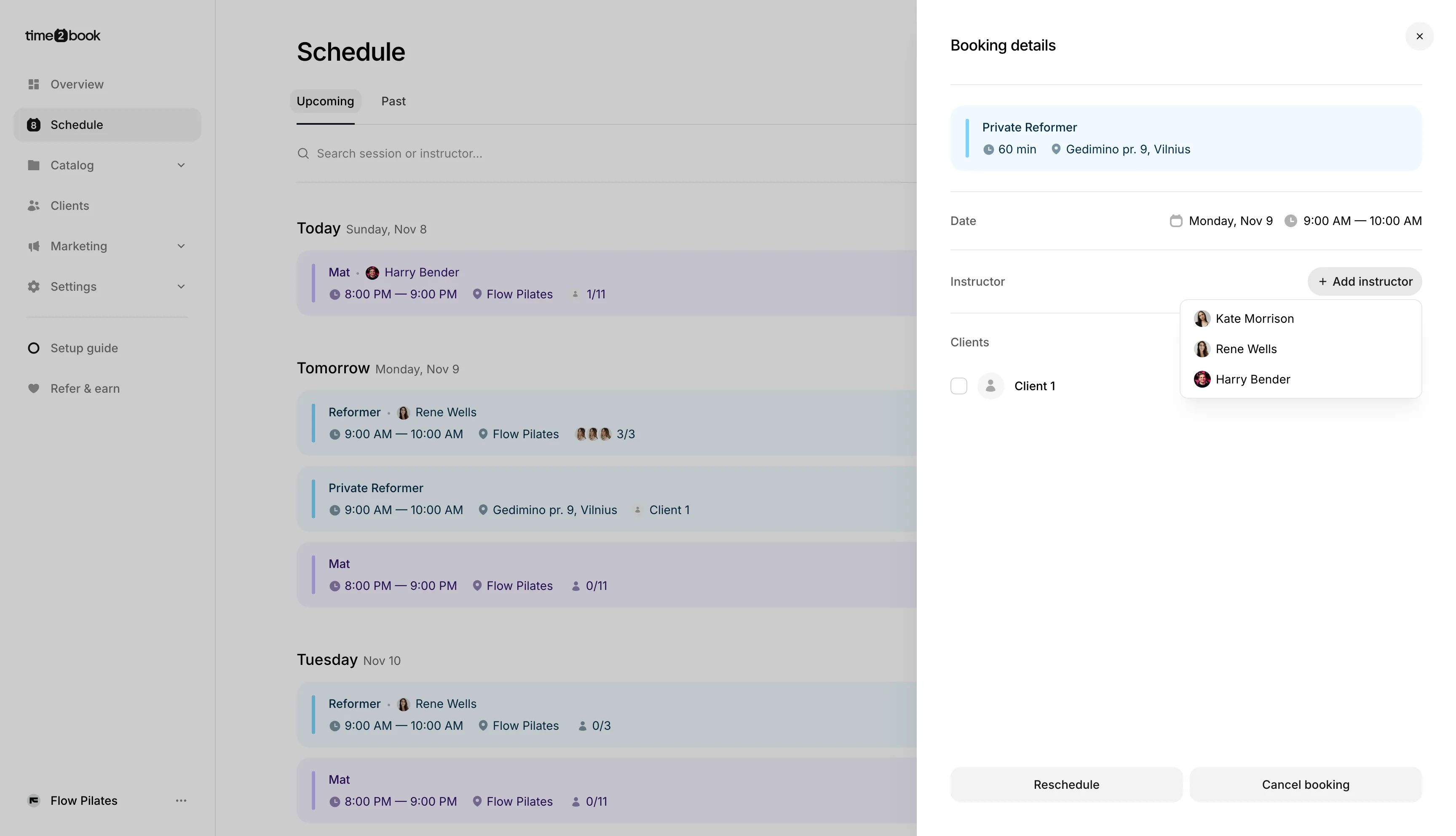
The change saves automatically. If the person you choose already has a booking for this service at that time, you’ll see an error. The appointment then has no one assigned until you pick someone who is free.
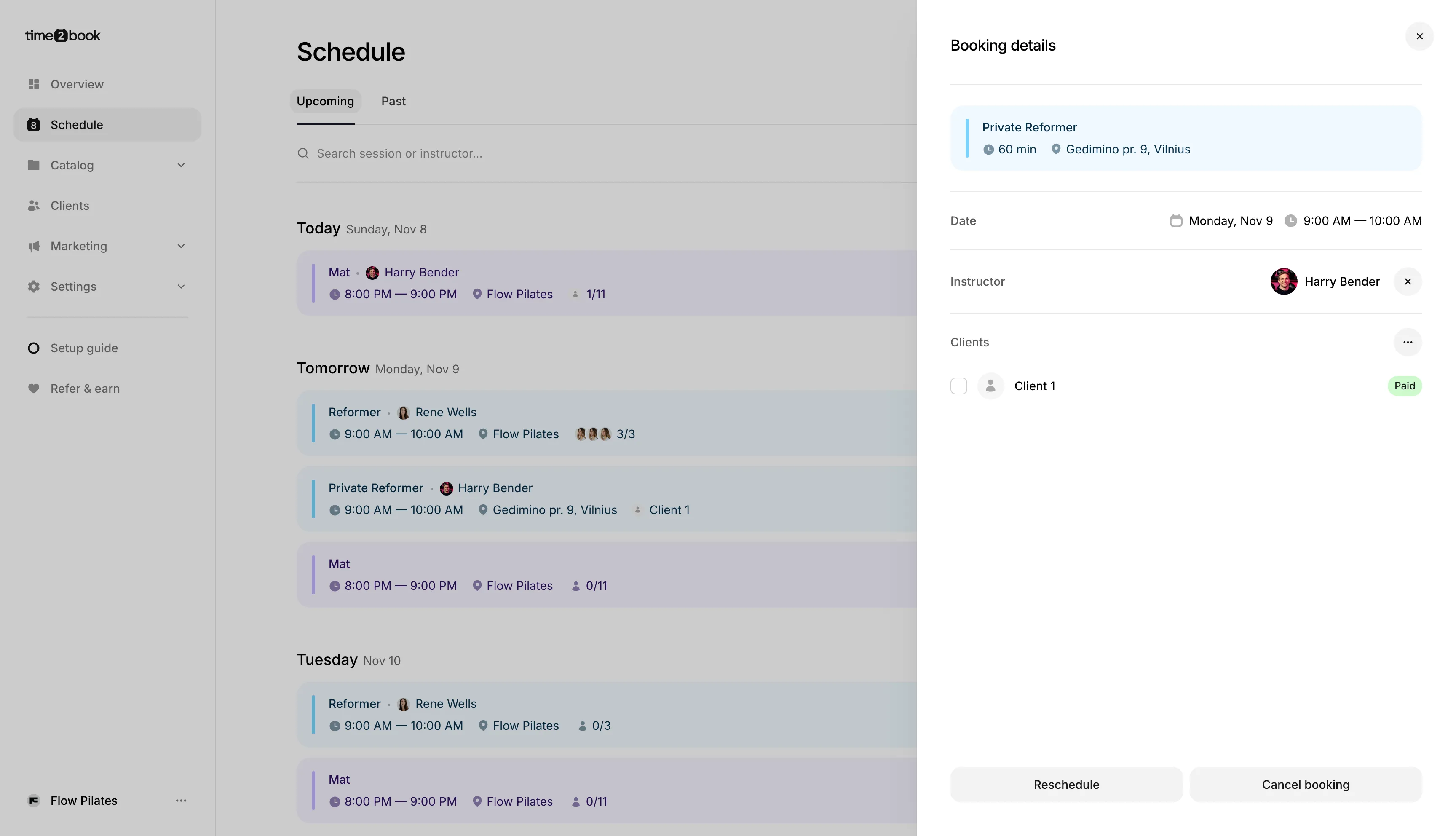
When you add an appointment yourself from the Schedule, you don’t choose a team member. Time2book places it with one of the service’s team members if one works at that time, or with no one if not. Check the Instructor row in Booking details and change it if needed.
For instructors: set your own hours
Instructors can manage their own working hours without help from the owner.
- From the left-hand menu, click Settings → Availability.
- Set your weekly hours and any adjusted dates.
- Click Save changes.
Your hours apply to every appointment service you’re linked to.