Keep your classes full, even after cancellations
When a class is full, clients join the waitlist. When someone cancels, the next person in line is booked in automatically, so every spot gets filled.

Set it up once, then let it run
The waitlist works with your schedule, memberships and payments, so the right client is booked every time.
Clients join in one click
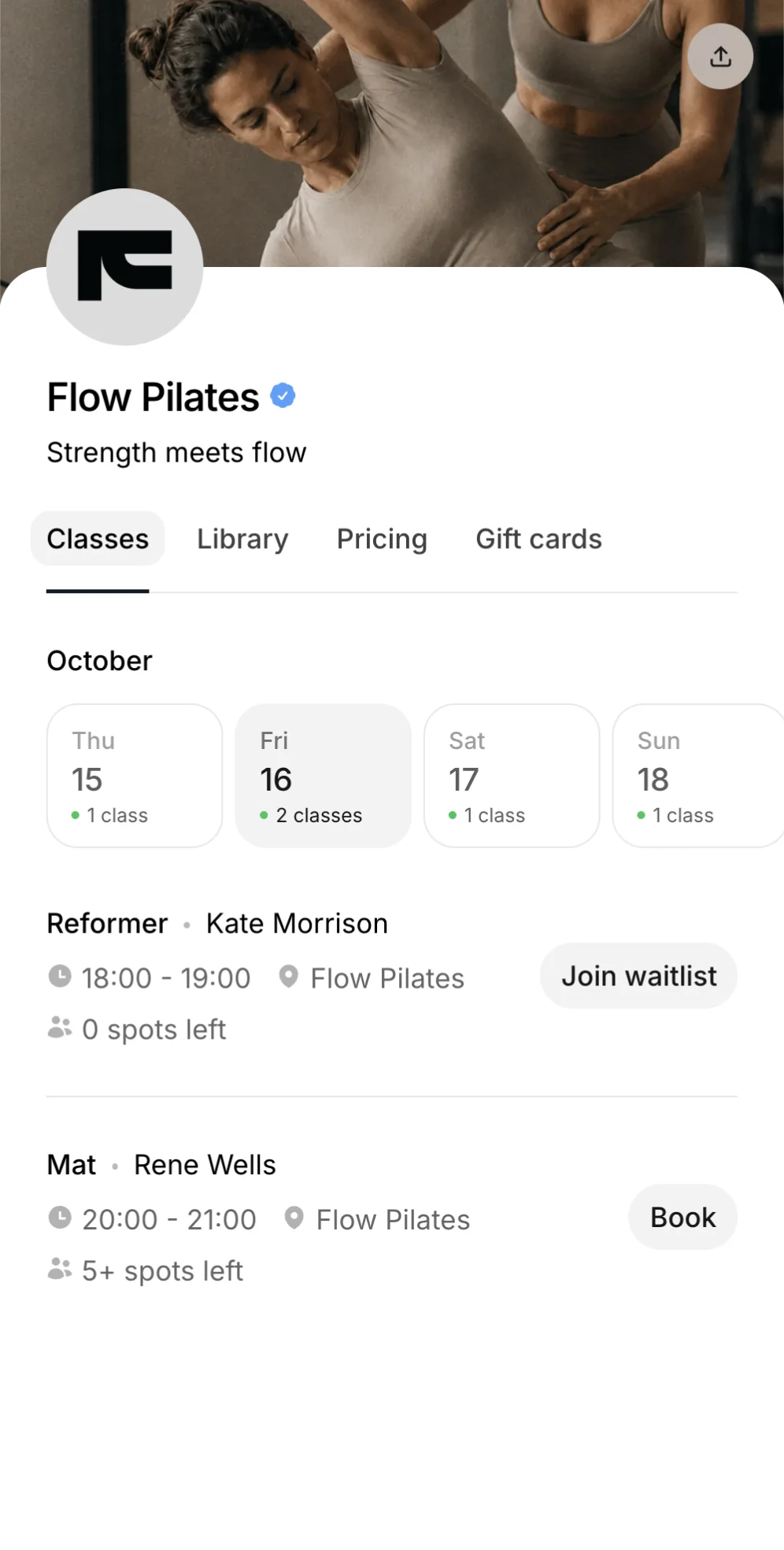
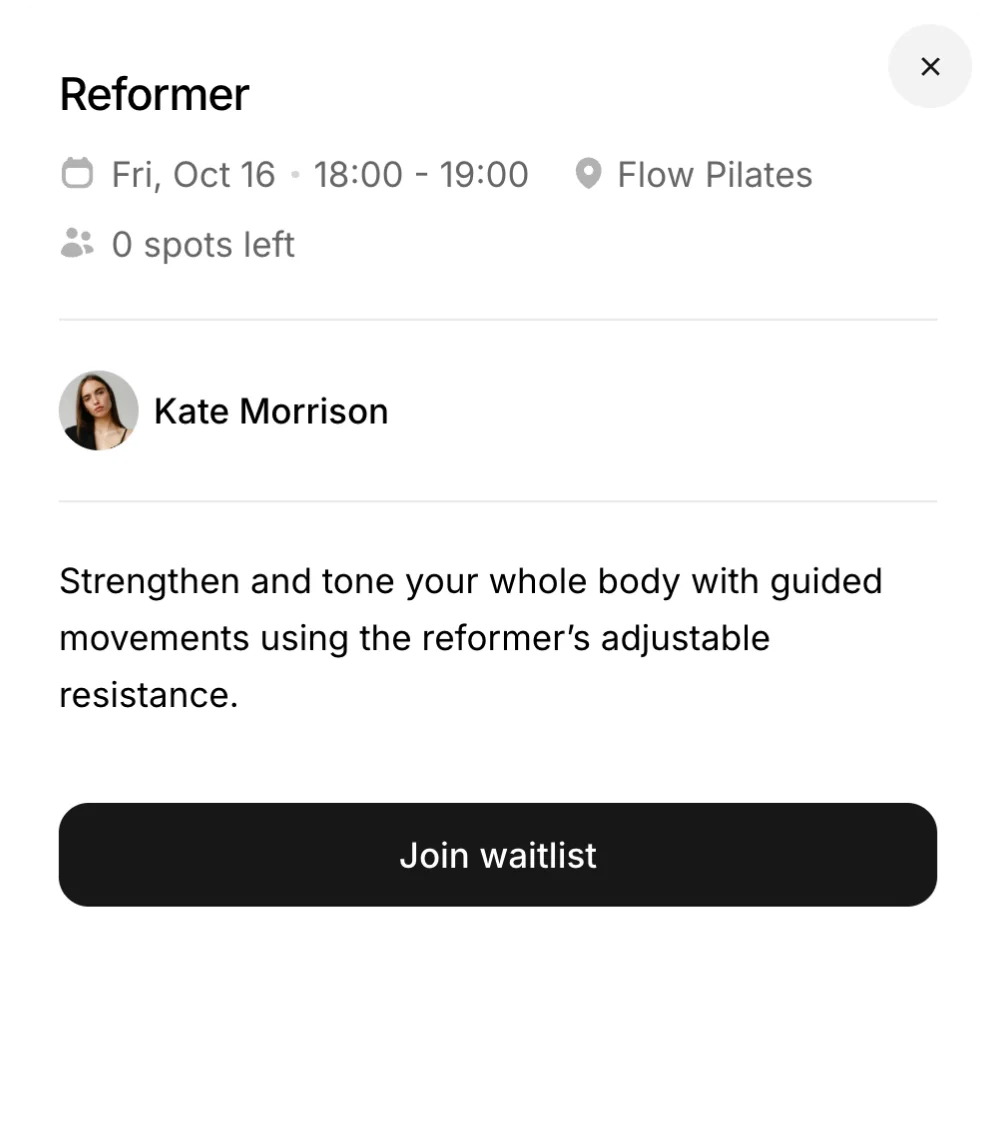
When a class is full, Book becomes Join waitlist. Clients confirm, get an email, and that's it. No calls or messages to you.
One-click join on any class with no spots left.
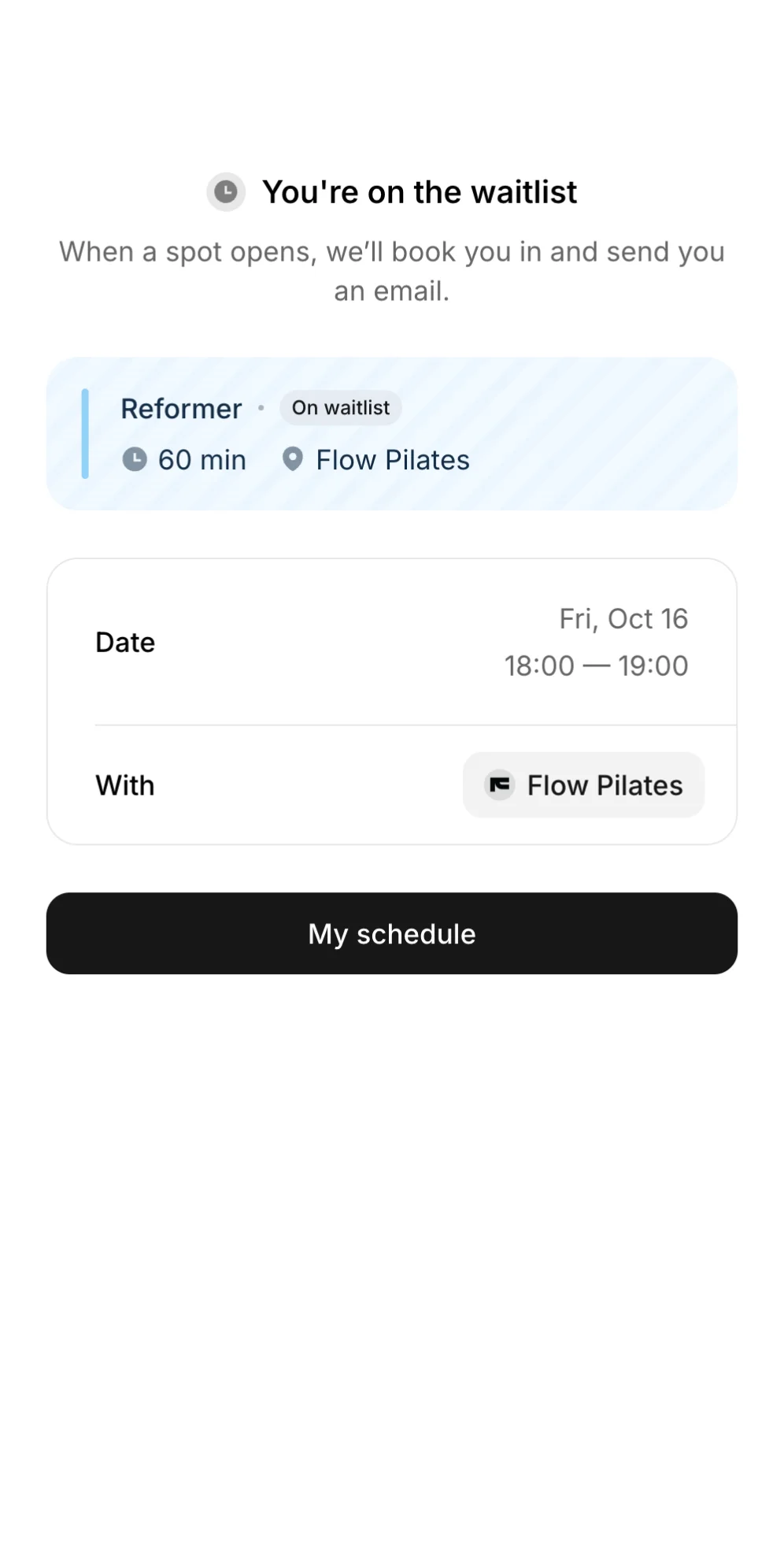
Instant confirmation by email, so clients know they're on the list.
Automatic booking when a spot opens, with an email to confirm.
See who's waiting on every class
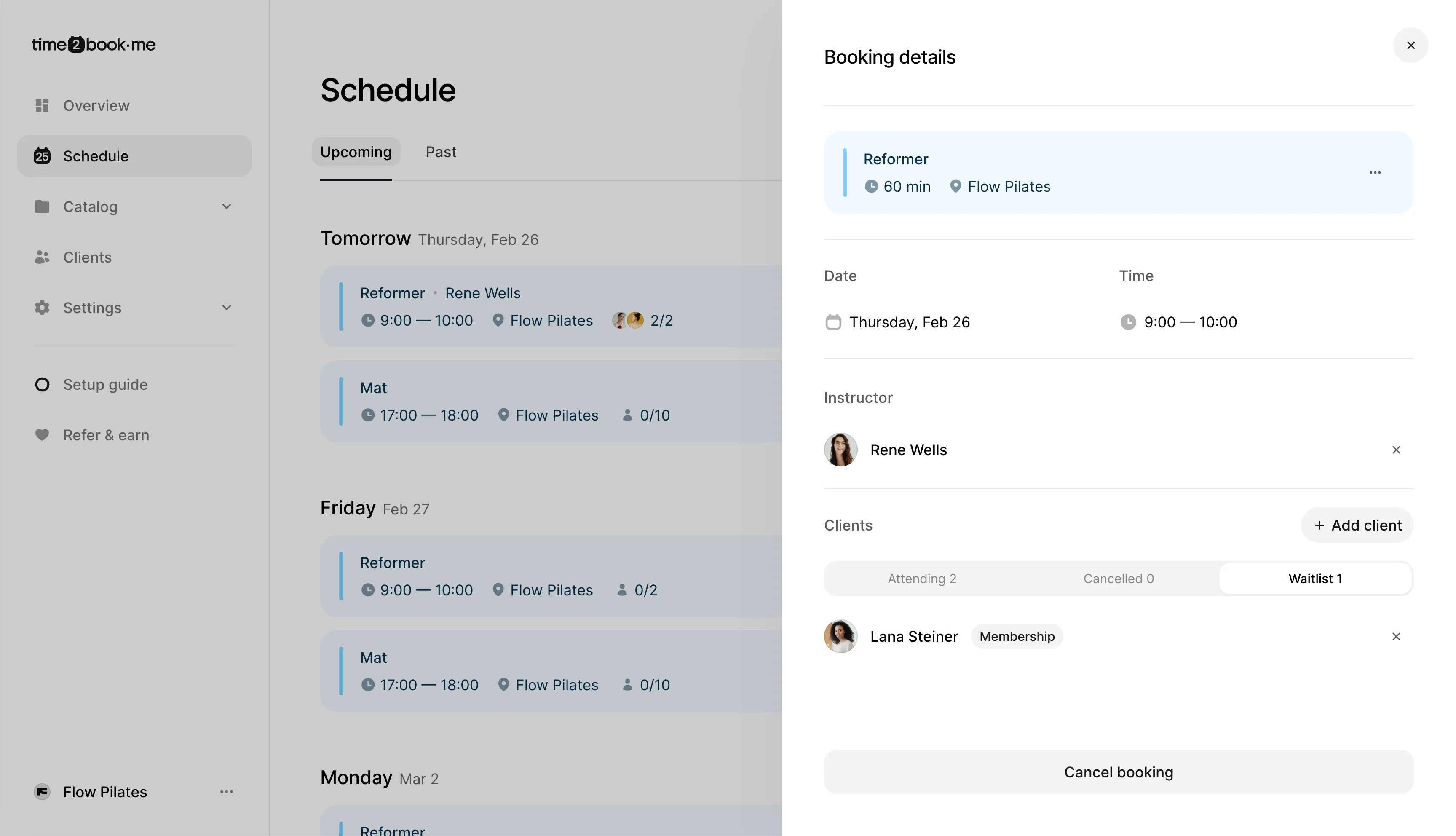
Open any class in your schedule to see its waitlist. The first client in line is booked first, and if a booking fails, the next person gets the spot.
Fair order means first to join is first to be booked.
Smart fallback skips clients who can't be booked, like no credits left.
Cutoff time lets you choose how many hours before class auto-booking stops.
How the waitlist works
Turn it on once. Every cancellation after that is handled for you.
Get started for free1
Turn it on
Switch on the waitlist in Settings and choose a cutoff time.
2
Clients join instead of leaving
When a class is full, Join waitlist replaces Book. Clients confirm and get an email.
3
Cancelled spots fill themselves
The moment a spot opens, the first client in line is booked in and emailed.
"I like that Time2book is intuitive to use, making it easy and quick to set up. The platform looks really clean and professional, which is great for my clients when they make bookings."
Cassidy, Founder of And Breathe Out

Frequently asked questions
When a class is full, clients can join a waitlist instead of leaving. If a spot opens up, Time2book automatically books the next client in line and emails them, so you don't have to do anything.
Go to Settings, then Policies, and turn on the Waitlist toggle in the Waitlist section. Clients will see a Join waitlist button on any class that has no spots left.
The client who joined the waitlist first. If their booking can't be completed, for example because they have no credits left on their membership, Time2book moves on to the next person in line.
No. They are booked in automatically and get an email confirming it. This is what keeps the spot from sitting empty while you wait for a reply.
Yes. Set a waitlist cutoff in Settings, then Policies, for example 3 hours before the class. After the cutoff, clients stay on the waitlist but are no longer booked in automatically.
Yes. Open a class in your Schedule and go to the Waitlist tab in the Clients section. Clients are listed in order, and the person at the top is promoted first.
Yes. They see a confirmation right away and get an email saying they are on the waitlist. They get a second email if a spot opens and they are booked in.
No. The waitlist is part of Time2book. Turn it on once and it works for every class.
Manage bookings and payments easier
Get a free 7-day trial
No credit card required