Cancelling a class
Sometimes you need to cancel a class, for example when an instructor is ill or the studio is closed for a holiday. In Time2book, you can cancel a class directly from your Schedule. Booked clients are notified by email automatically, and sessions paid with a membership or class pack are returned to them.
Step 1: Open the class
From the left-hand menu, click Schedule and click the class you want to cancel.
This opens the Booking details panel, where you can see who's booked.
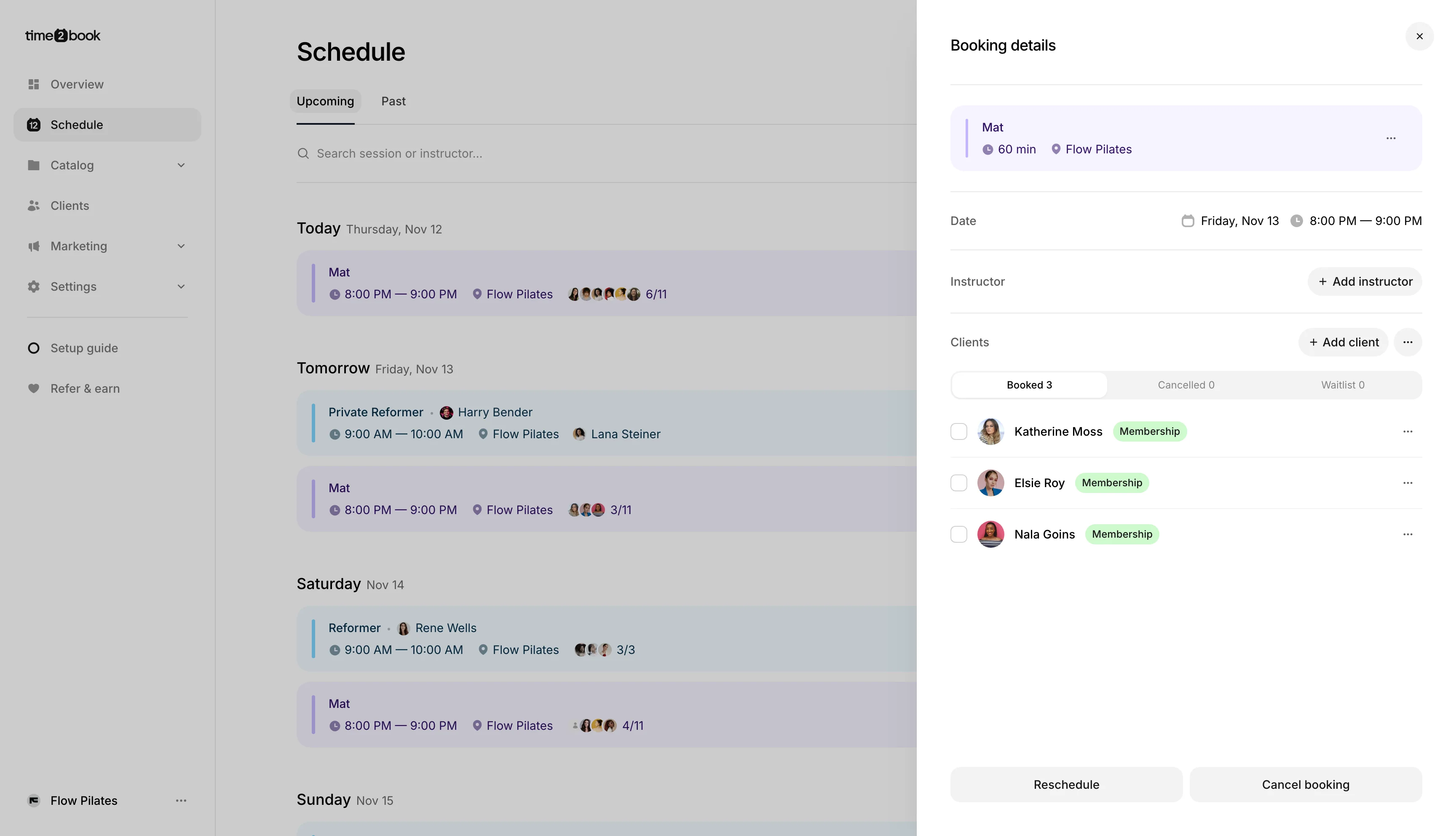
Step 2: Click Cancel booking
At the bottom of the booking details panel, click Cancel booking. The Cancel this class? dialog will open.
Step 3: Choose what to cancel
If the class repeats, choose which classes to cancel:
- Cancel only this class: cancels just this date and time.
- Cancel all future classes: cancels this class and every later class in the series.
- Cancel within a date range: choose a From and To date to cancel every class in the series between them, for example while the studio is closed for a holiday.
If the class doesn't repeat, you'll just be asked to confirm.
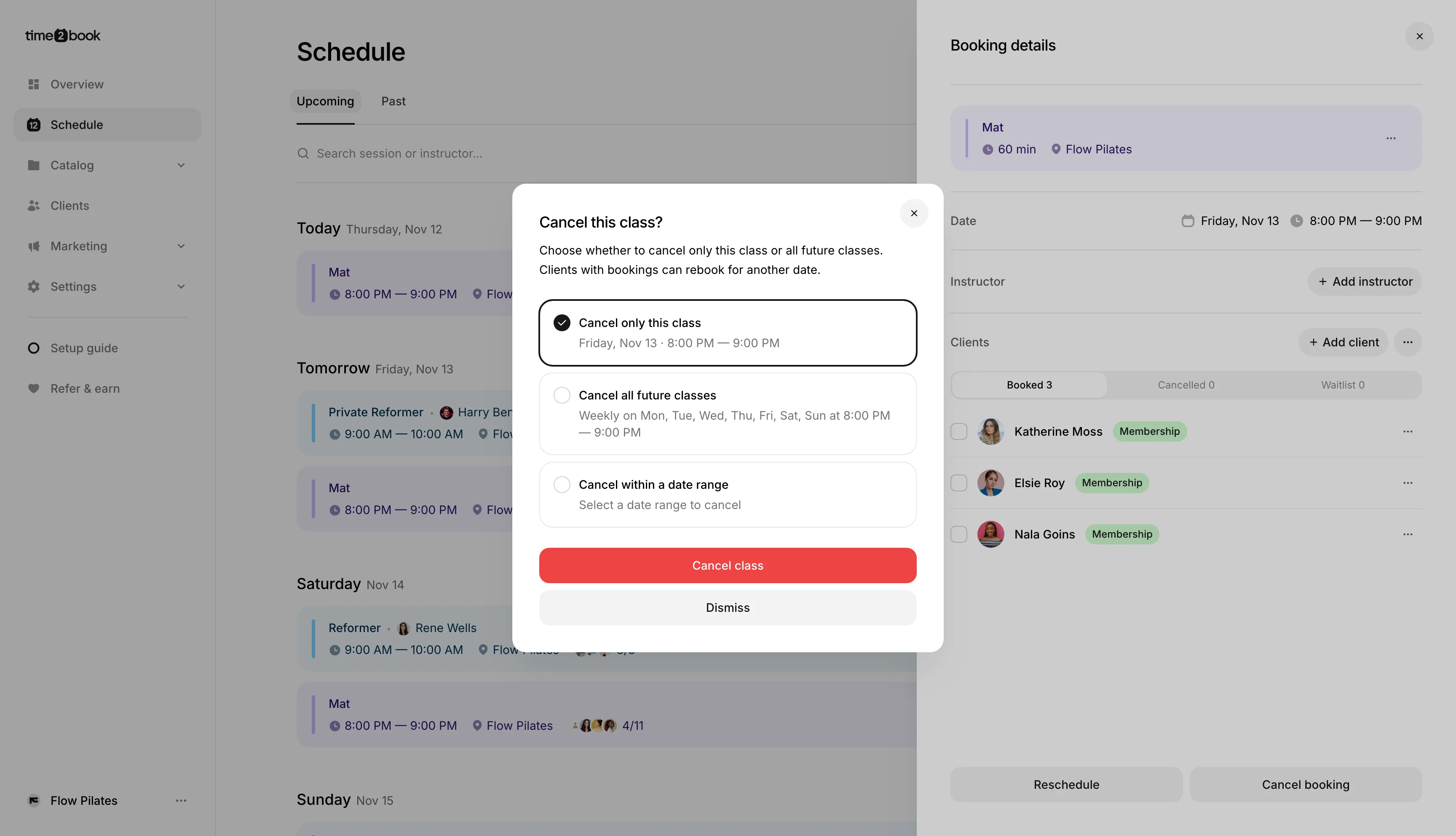
Step 4: Click Cancel class
Click Cancel class. The class now shows as Cancelled in your schedule, and clients can no longer book it.
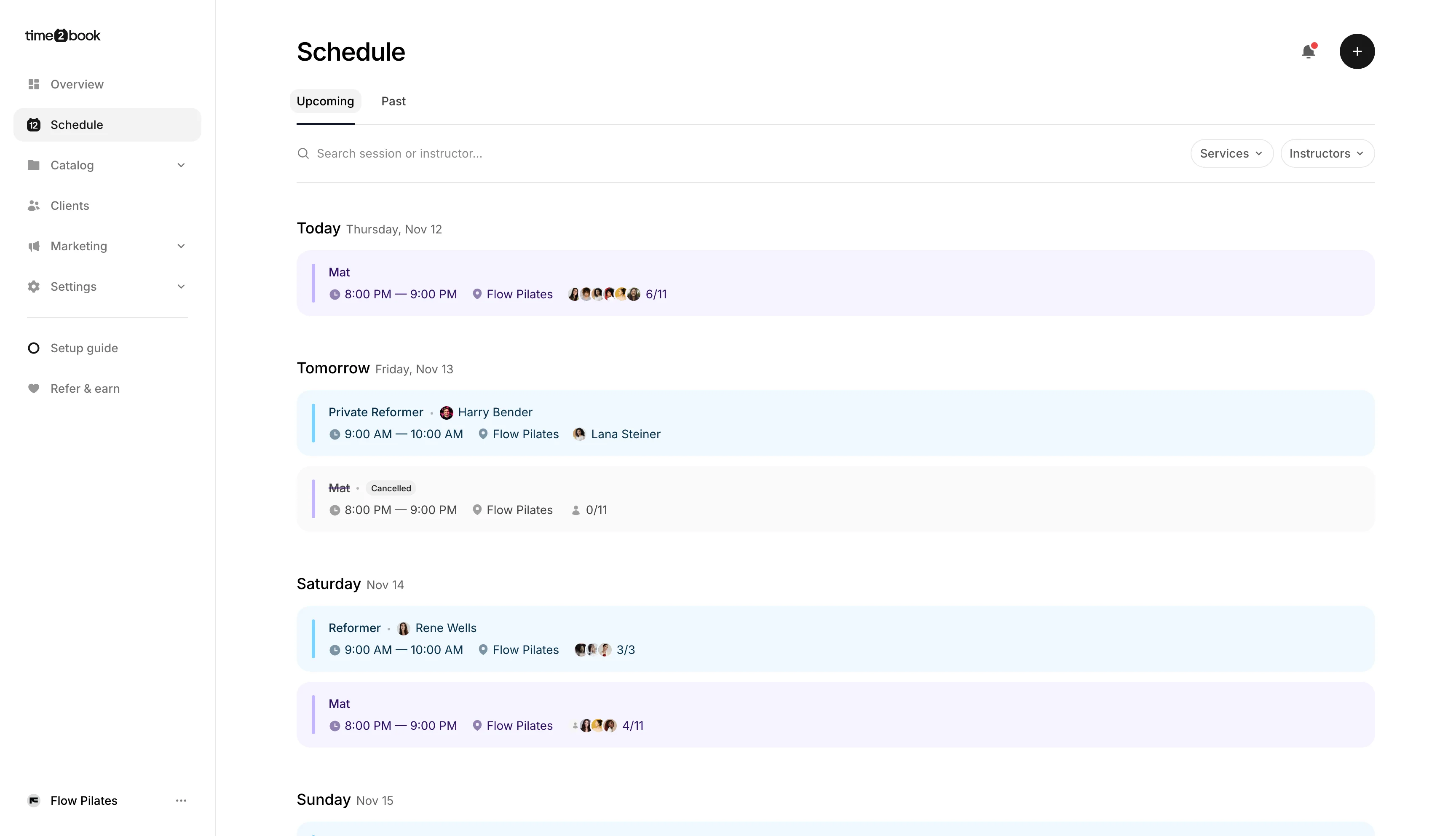
What happens to booked clients
Every client booked into the class gets an email letting them know it was cancelled.
- Booked with a membership or class pack: the unused session is returned to their account, so they can book another class.
- Paid for the class itself: the payment isn't refunded automatically. They can use it to rebook a future date.
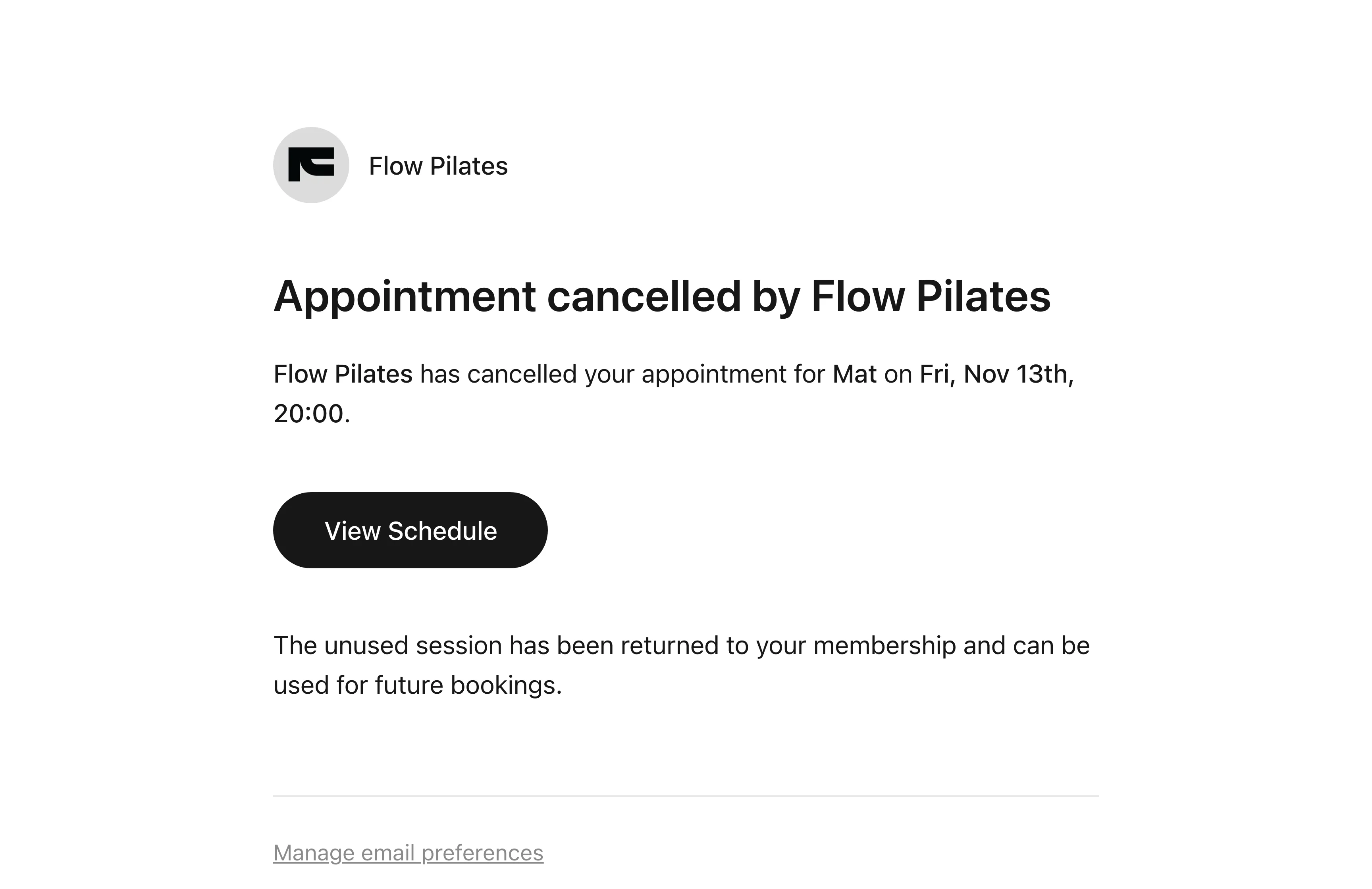
Good to know
To cancel one client's booking without cancelling the whole class, open the class in your Schedule, click the ⋯ next to the client, and choose Cancel booking. The unused session is returned to their account.
If you'd rather move the class to a different time and keep clients booked, see Rescheduling a class.