Segments
A segment is a saved group of clients that updates itself. You set the rules once, such as “hasn’t booked in the last 30 days”. Clients then join when they start matching your rules and leave when they stop.
Use segments to see who needs attention, follow up with the right people, and send emails that fit the group instead of emailing everyone.
Business owners and managers can create and manage segments.
Step 1: Open Segments
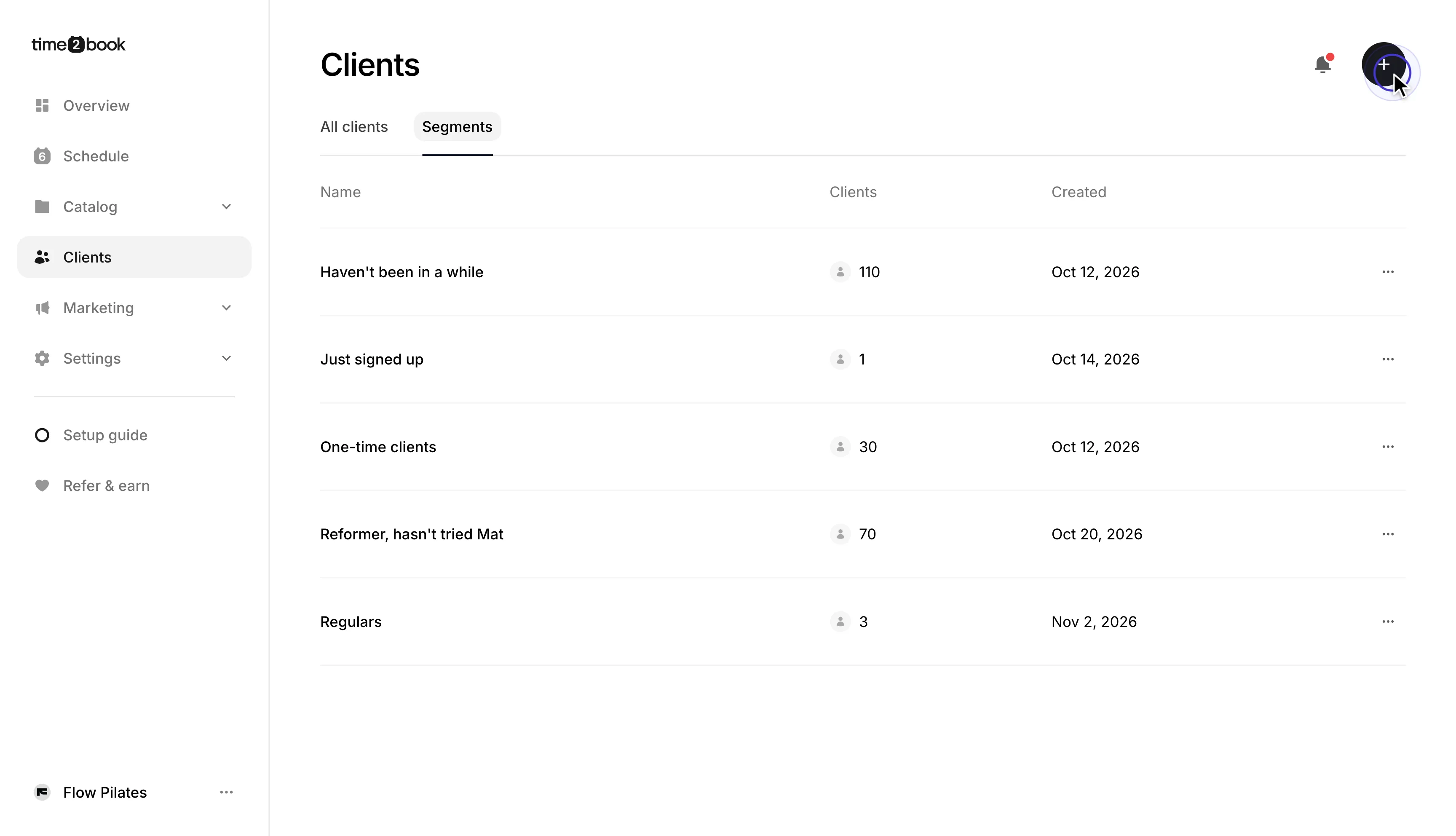
From the left-hand menu, click Clients. Then open the Segments tab.
Here you can see each segment, how many clients it has right now, and when it was created. Click the + button to create a new one.
Step 2: Start from a suggestion or from scratch
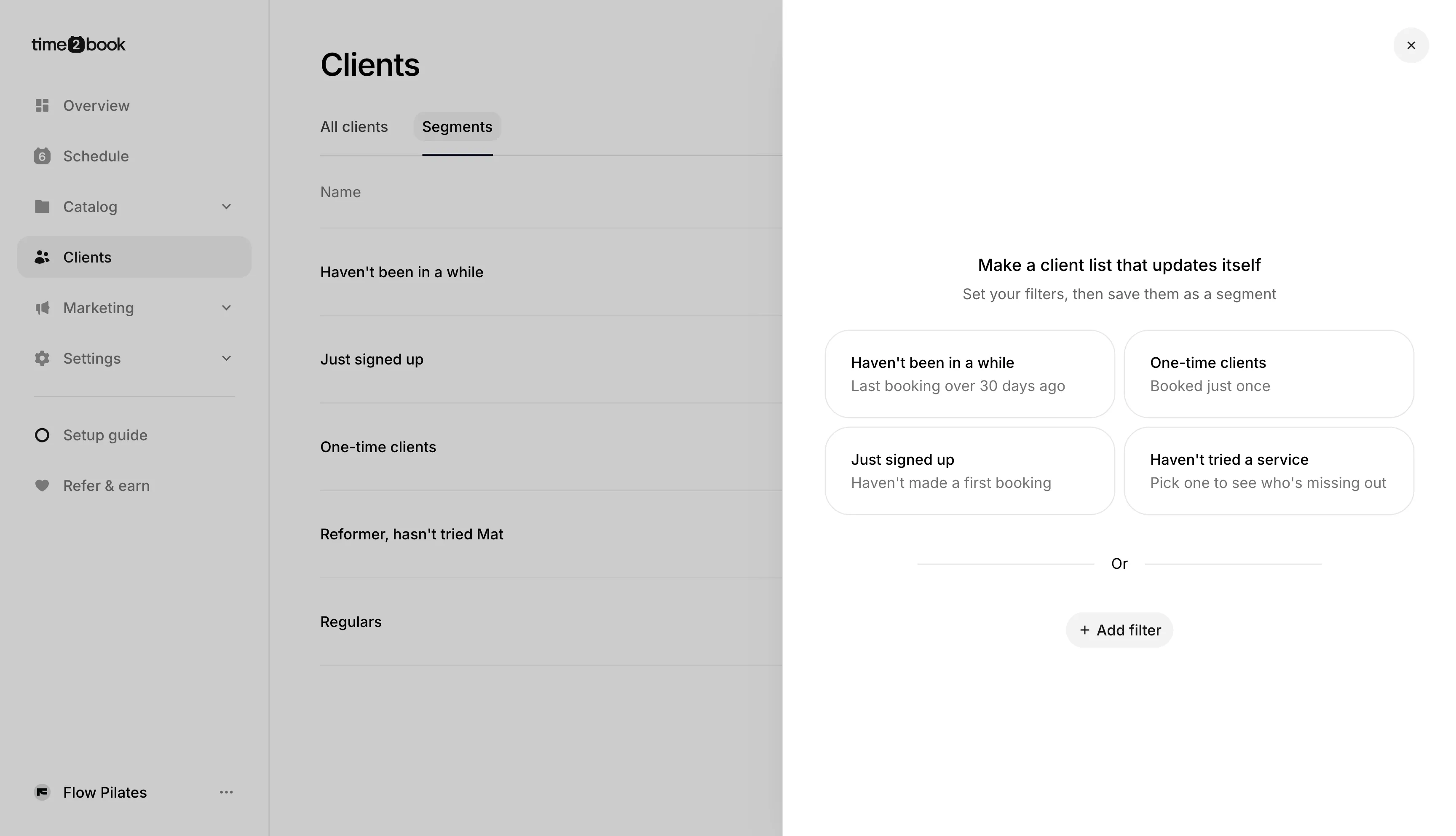
Choose one of the ready-made suggestions:
- Haven’t been in a while – Last booking was over 30 days ago.
- One-time clients – Booked just once.
- Just signed up – Signed up in the last 14 days, with no past bookings.
- Haven’t tried a service – Haven’t booked a service you pick.
You can change a suggestion’s filters after choosing it. To start from scratch, click Add filter.
Step 3: Add filters
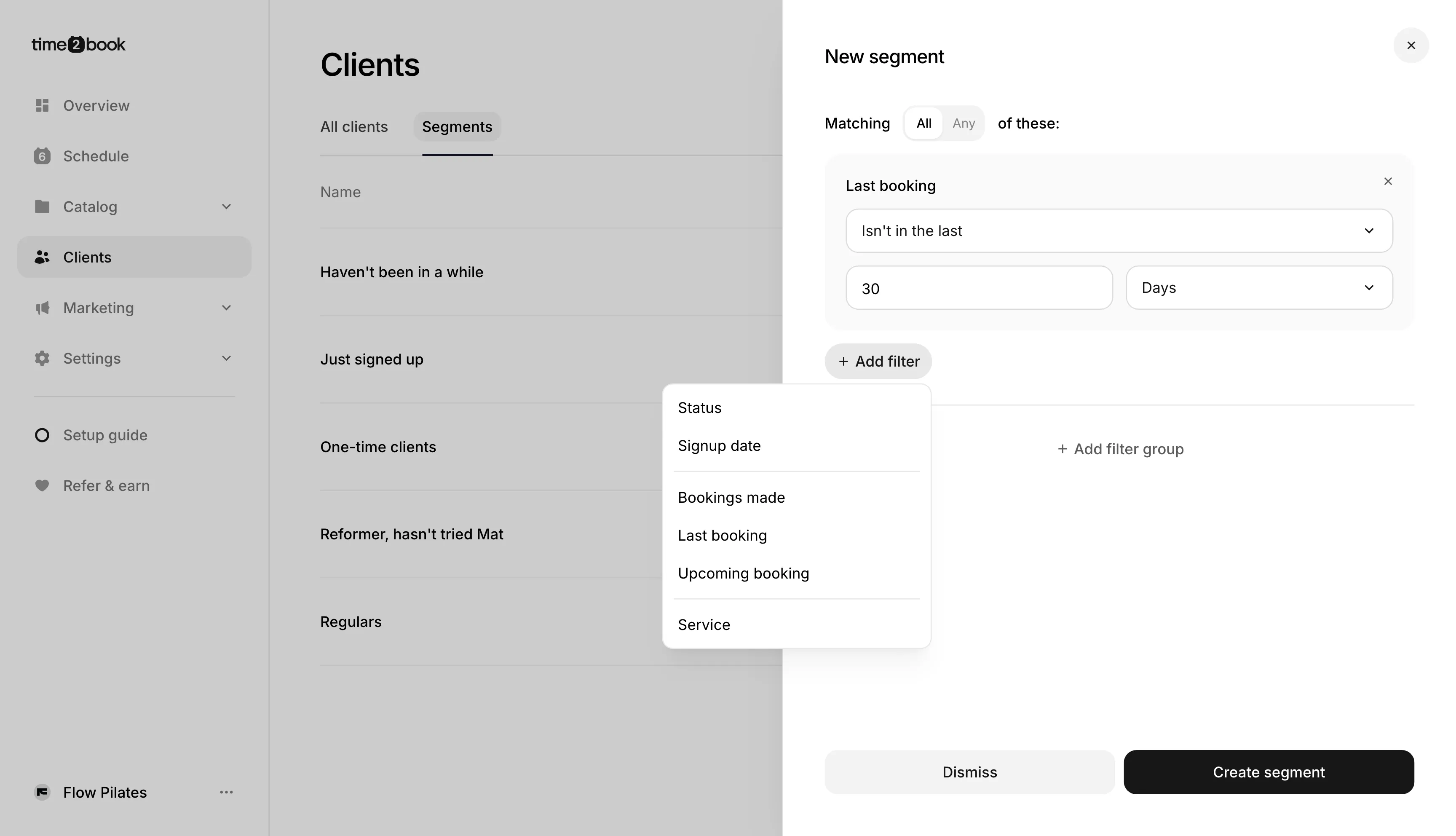
Click Add filter and choose what to filter by:
- Status – Active clients have an active membership or class pack. Inactive clients don’t. A Lead hasn’t become a client yet.
- Signup date – When the client joined. Use a rolling period, such as the last 14 days, or a set date.
- Bookings made – How many bookings the client has made, either all time or in a period such as the last 90 days.
- Last booking – When the client last had a booking. Use a rolling period or a set date.
- Upcoming booking – Whether the client has a booking coming up, either at any time or within a set period.
- Service – Whether the client has or hasn’t booked the services you pick.
Step 4: Choose how filters work together
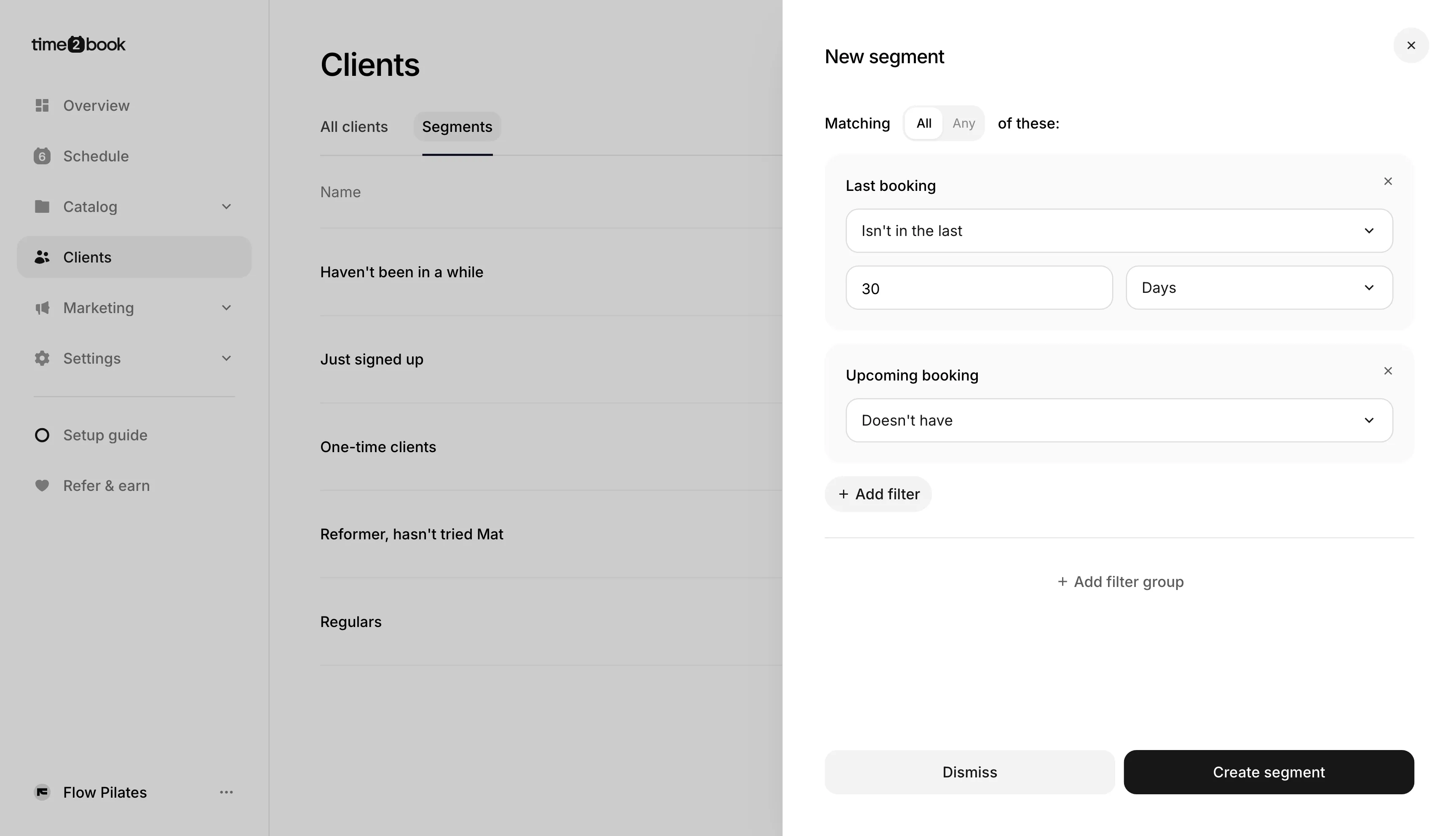
Use the Matching switch to decide how filters combine:
- All – Clients must match every filter. Use this to narrow a group down.
- Any – Clients only need to match one filter. Use this to widen a group.
For example, with All selected, these filters find clients who haven’t had a booking in the last 30 days and don’t have one coming up.
Step 5: Use filter groups for more detailed rules
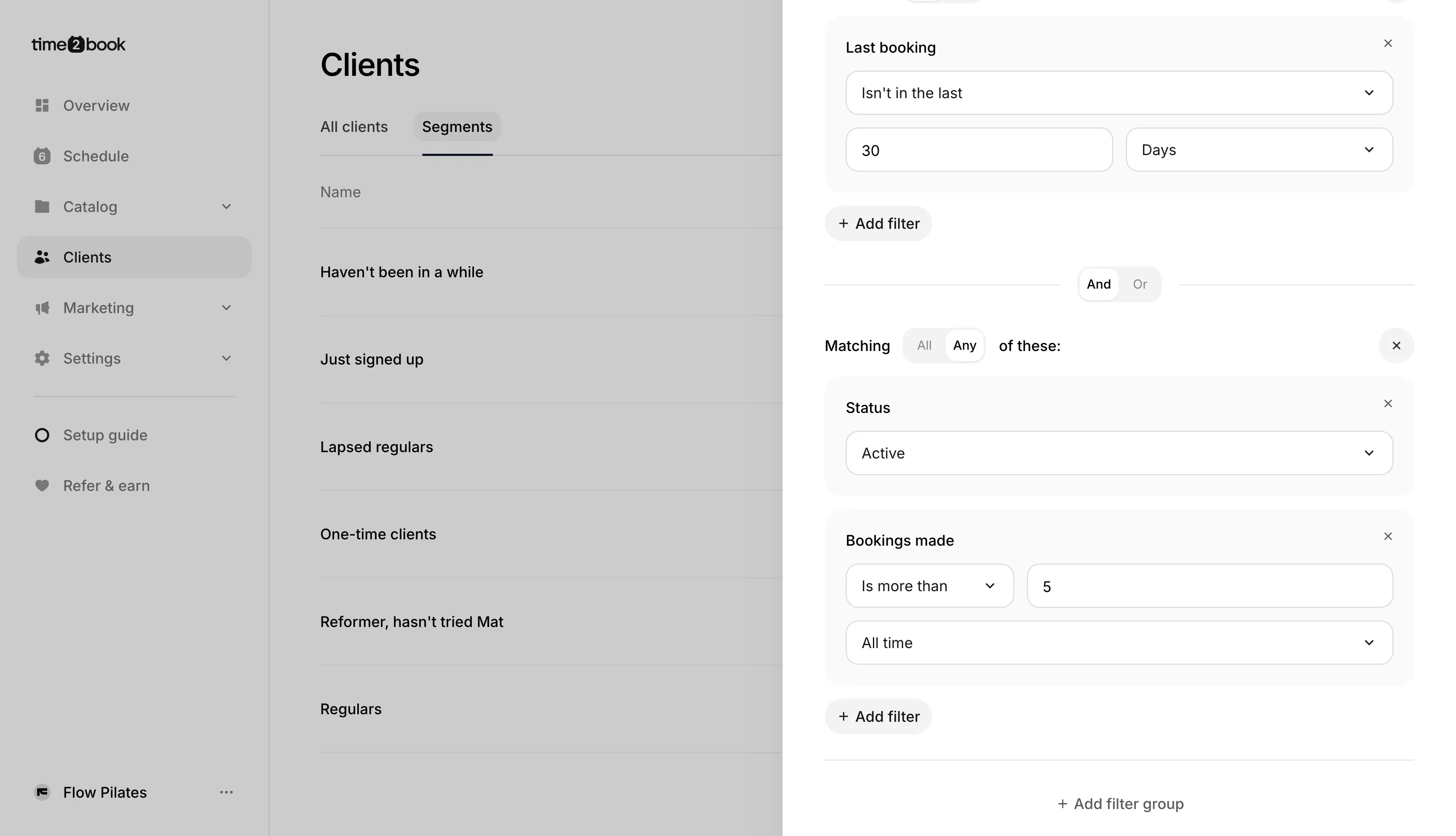
Click Add filter group when you need both All and Any in the same segment. Each group has its own Matching switch. The And / Or switch between groups sets how they combine.
In this example, a client must meet both of these conditions:
- They haven’t had a booking in the last 30 days.
- Their status is Active or they have made more than 5 bookings.
Most segments only need one group.
Step 6: Name and save your segment
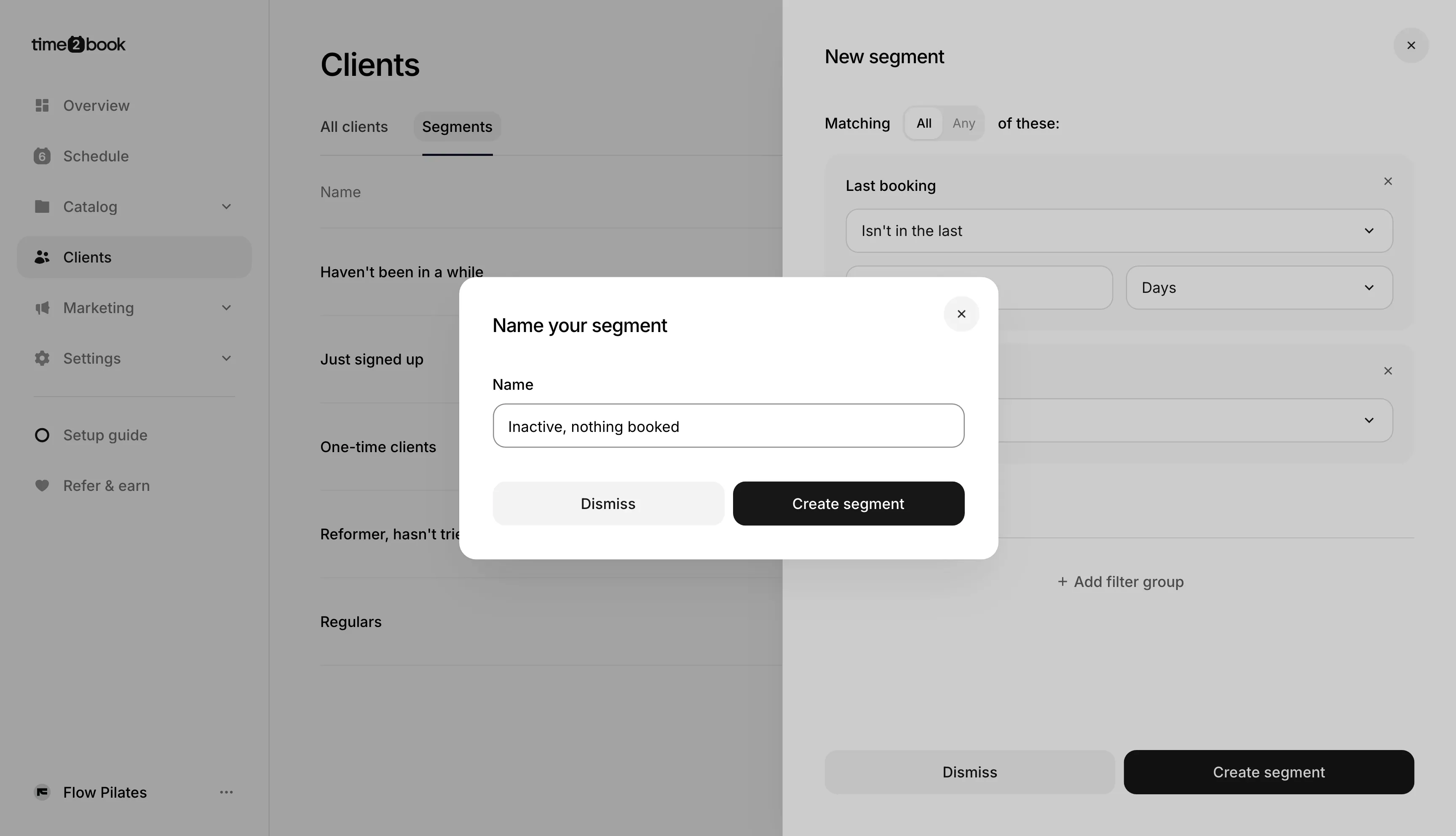
Click Create segment, enter a name, then click Create segment again.
Step 7: View the clients in a segment
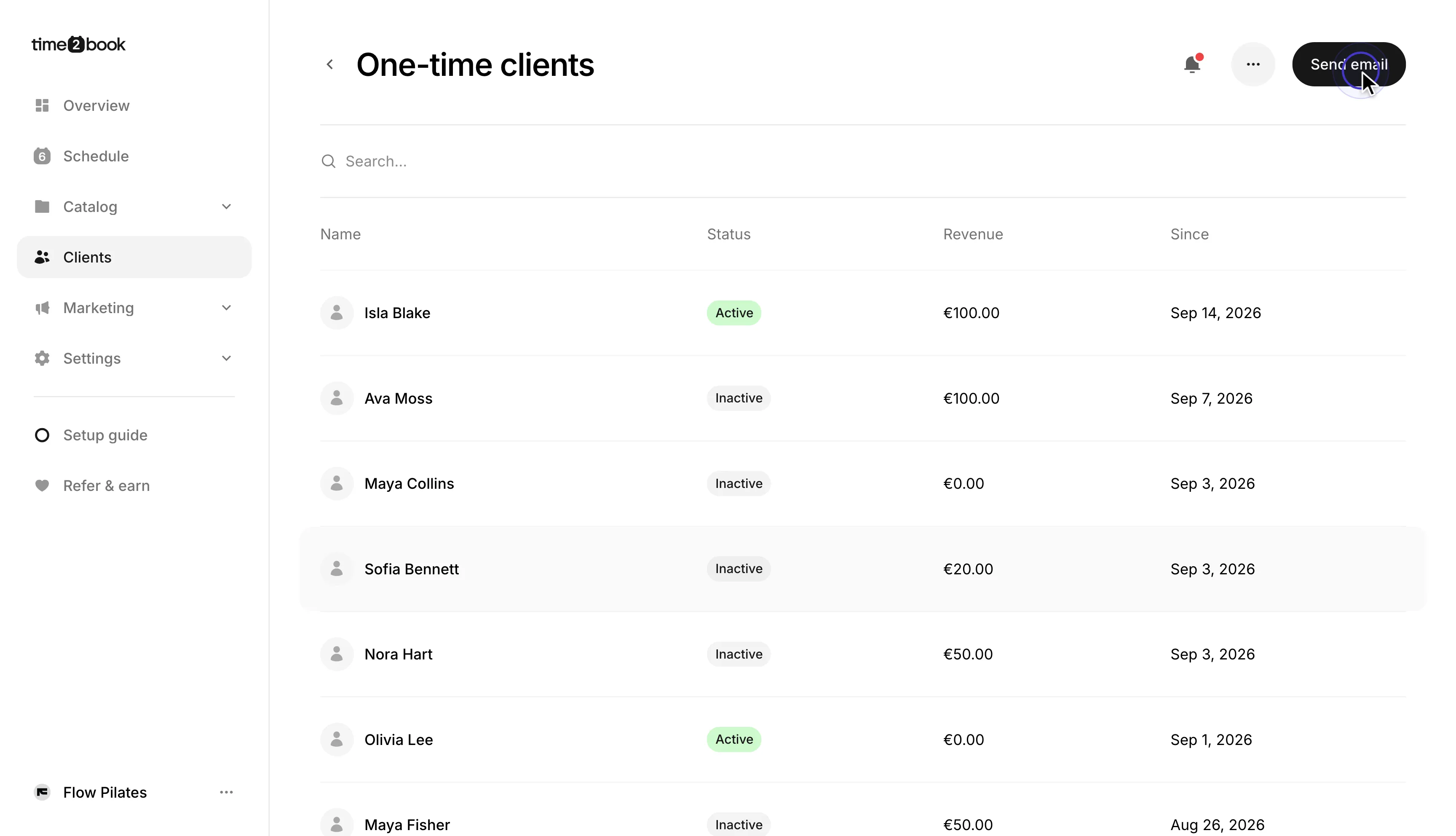
Click a segment to see who is in it right now. You can search the list and click a client to open their details.
Send an email to a segment
Open a segment and click Send email. A new email opens with that segment already chosen as the audience. You can also pick a segment when choosing recipients for any email.
Only subscribed clients receive marketing emails, so the number of recipients can be lower than the number of clients in the segment. See Email marketing for the full steps.
Edit or delete a segment
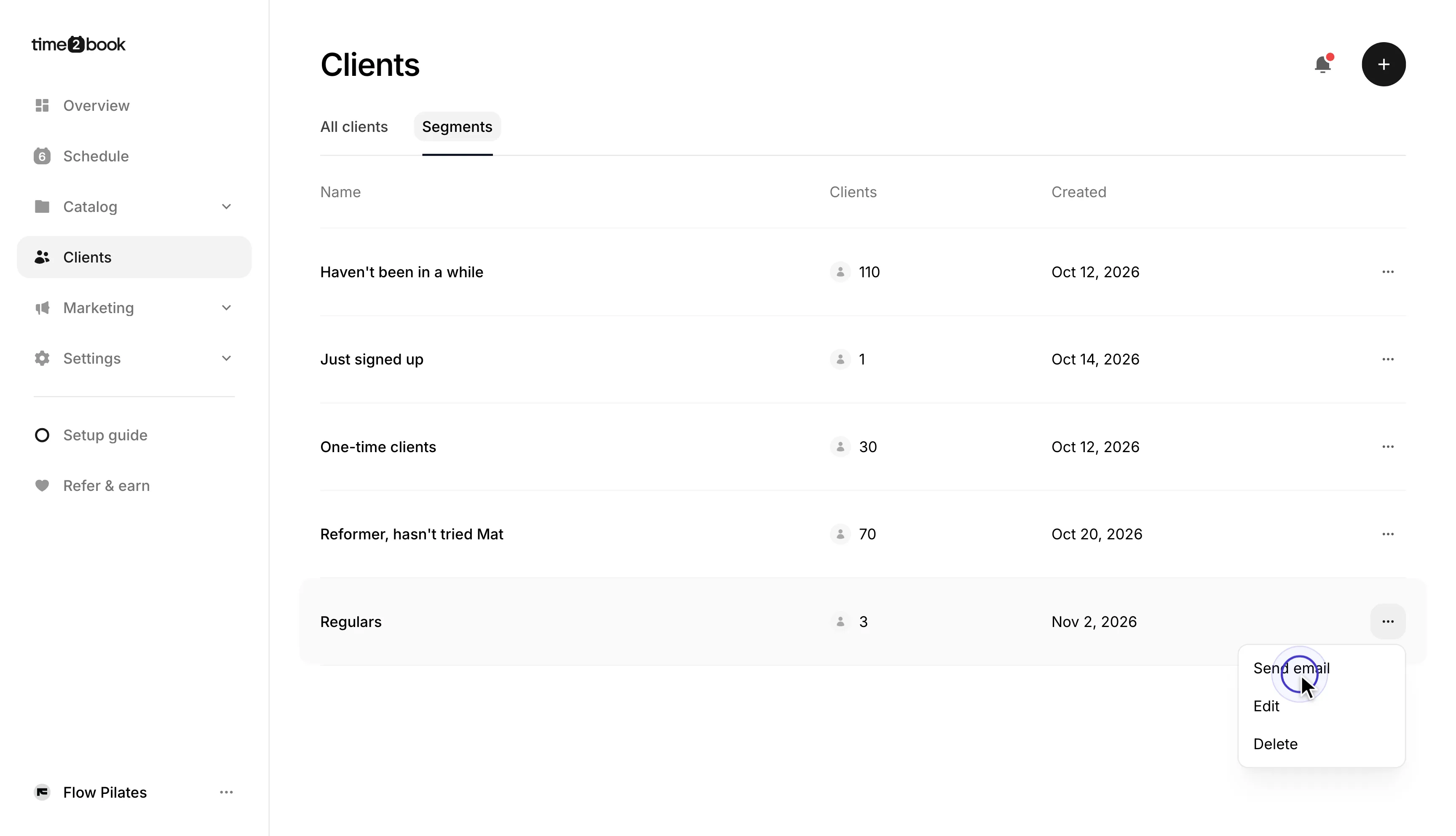
In the Segments tab, click ⋯ next to a segment. Then choose Send email, Edit or Delete.
Deleting a segment doesn’t affect the clients in it or emails you’ve already sent. If a draft email uses that segment, you’ll need to choose a new audience before sending it.
Segment ideas
| Goal | Filters | What to do with it |
|---|---|---|
| Win back quiet clients | Last booking isn’t in the last 30 days, Bookings made is more than 0, and Upcoming booking doesn’t have | Share what’s new or a return offer |
| Encourage a second visit | Bookings made is equal to 1, and Last booking is in the last 14 days | Thank them and suggest their next class |
| Get a first booking | Signup date is in the last 14 days, Bookings made is equal to 0, and Upcoming booking doesn’t have | Explain how to book and which class to try first |
| Turn regulars into members | Status is Inactive, and Bookings made is more than 3 in the last 90 days | Show how a membership could suit them |
| Remind members to book | Status is Active, and Upcoming booking doesn’t have | Share next week’s schedule |
| Introduce another service | Service has booked Reformer, and Service hasn’t booked Mat | Explain how the new class helps them |
| Thank your best clients | Bookings made is more than 8 in the last 30 days | Offer early access or ask for a referral |
Change the numbers to suit your business. Thirty days without a booking is a long gap for a client who comes every week, but normal for one who comes once a month.
Best practices
Start with what you want to do. Decide on the message or action first, then build the group it’s for.
Use clear names. Describe who is in the segment, such as Members with nothing booked, so anyone on your team can tell what it’s for.
Keep the rules simple. One to three filters are usually enough. Too many can leave you with a very small group and make the segment harder to understand later.
Use rolling periods. “In the last 30 days” stays useful as time passes. A set date gets further away each week, so use one only for a specific moment, such as clients who joined before a price change.
Check for upcoming bookings. A client can be quiet recently but already booked for next week. Add Upcoming booking doesn’t have to win-back segments so you don’t ask them to come back when they already are.
Check the list before you send. Open the segment and look through the names to see whether the rules found the right people.
Watch how often you email. A client can be in several segments at once and may receive an email from each one. Plan your emails together so the same people don’t hear from you too often.
Clean up now and then. Delete segments you no longer use so the right ones are easy to find.
Good to know
What counts as a booking: Only confirmed bookings count, not cancelled ones. Bookings made and Last booking only count bookings that have already happened. Use Upcoming booking for future ones.
Clients who have never booked: They match Last booking isn’t in the last 30 days, but not Last booking is before a set date. To leave them out, add Bookings made is more than 0.
One-off searches: If you only need a list once, use Filters in the All clients tab instead of saving a segment.
What you can’t filter by: Segments can’t filter by revenue.