Editing client’s membership expiration date
You can manually update the expiration date of a client’s membership from their client profile. This can be useful when you need to extend or shorten the membership validity.
Step 1: Open the client
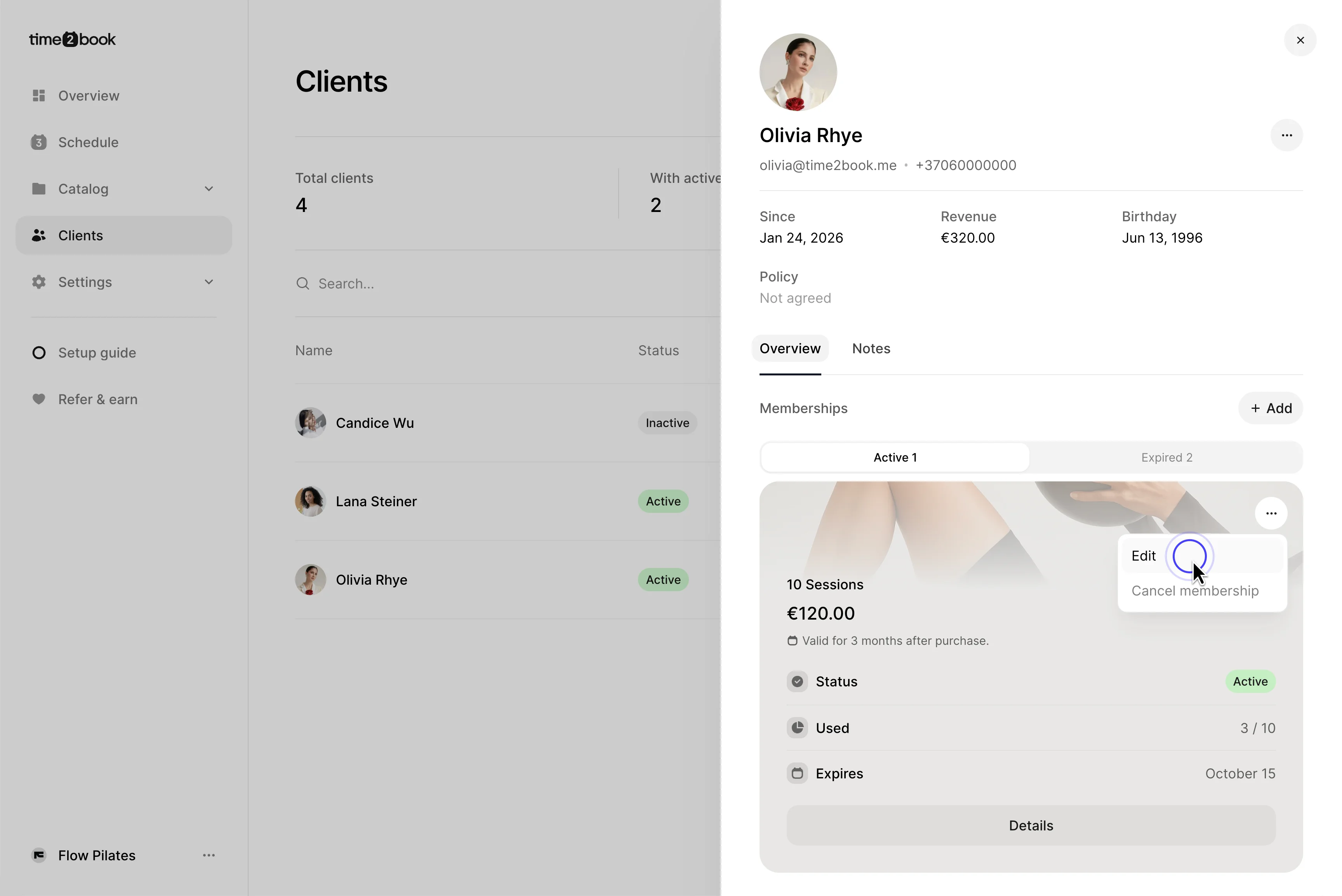
From the left-hand menu, click Clients, then select the client whose membership you want to update. Their profile will open with their active and expired memberships.
Step 2: Edit the membership
Find the membership you want to update, click the ••• menu in the top-right corner of the membership card, and select Edit.
Step 3: Change the expiration date
In the Edit membership window:
- Select a new date under Expires at.
- Click Save changes.
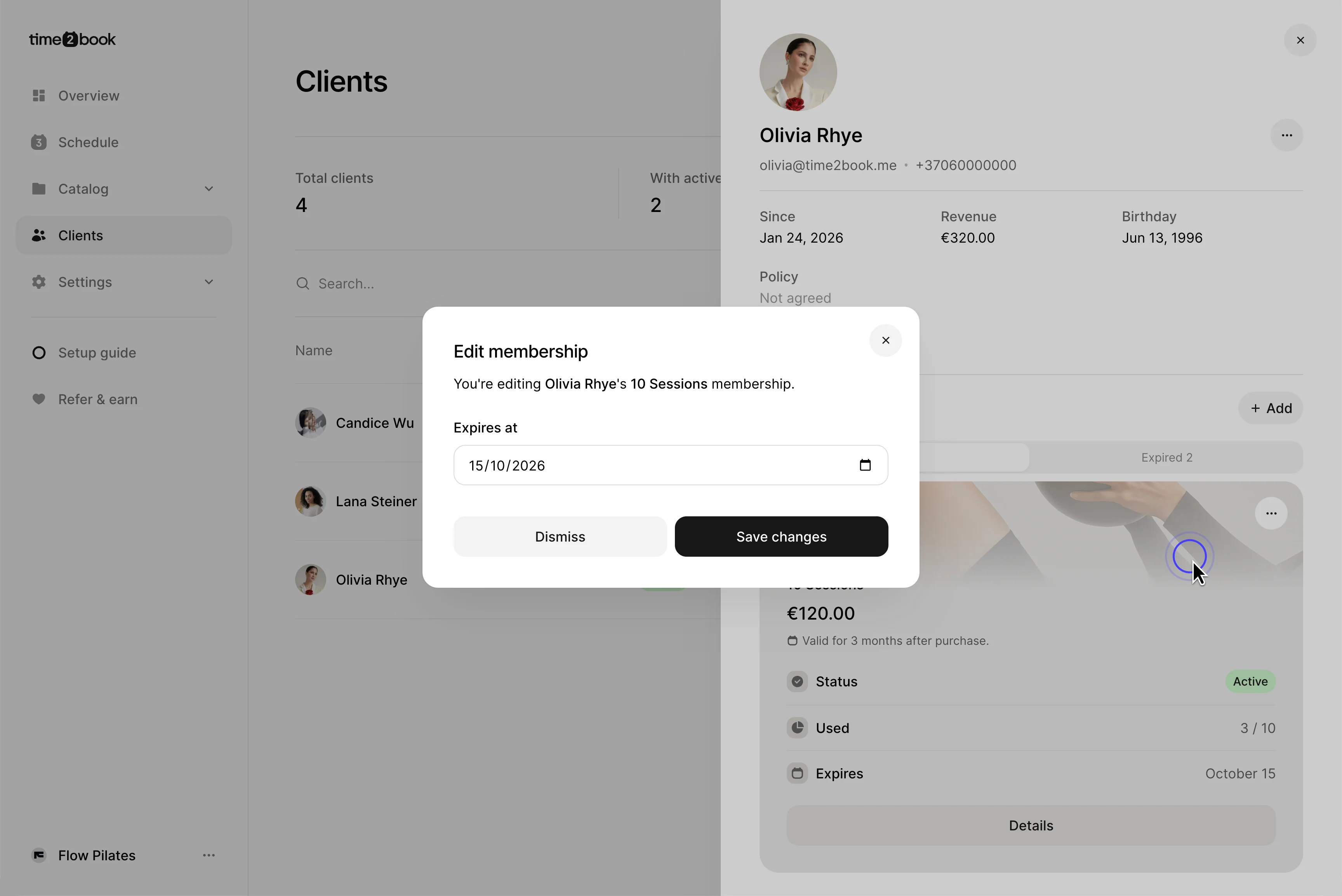
The membership will now use the new expiration date, which you can see on the client’s membership card.