Adding notes to a client
Client notes help you keep important details about each client in one place—preferences, injuries, progress, or anything you want to remember for future sessions.
Step 1: Open a client profile
- From the left-hand menu, go to Clients
- Click on a client to open their profile
Step 2: Go to Notes
- Inside the client profile, switch to the Notes tab
- Here you’ll see a space where you can add and manage notes for that client.
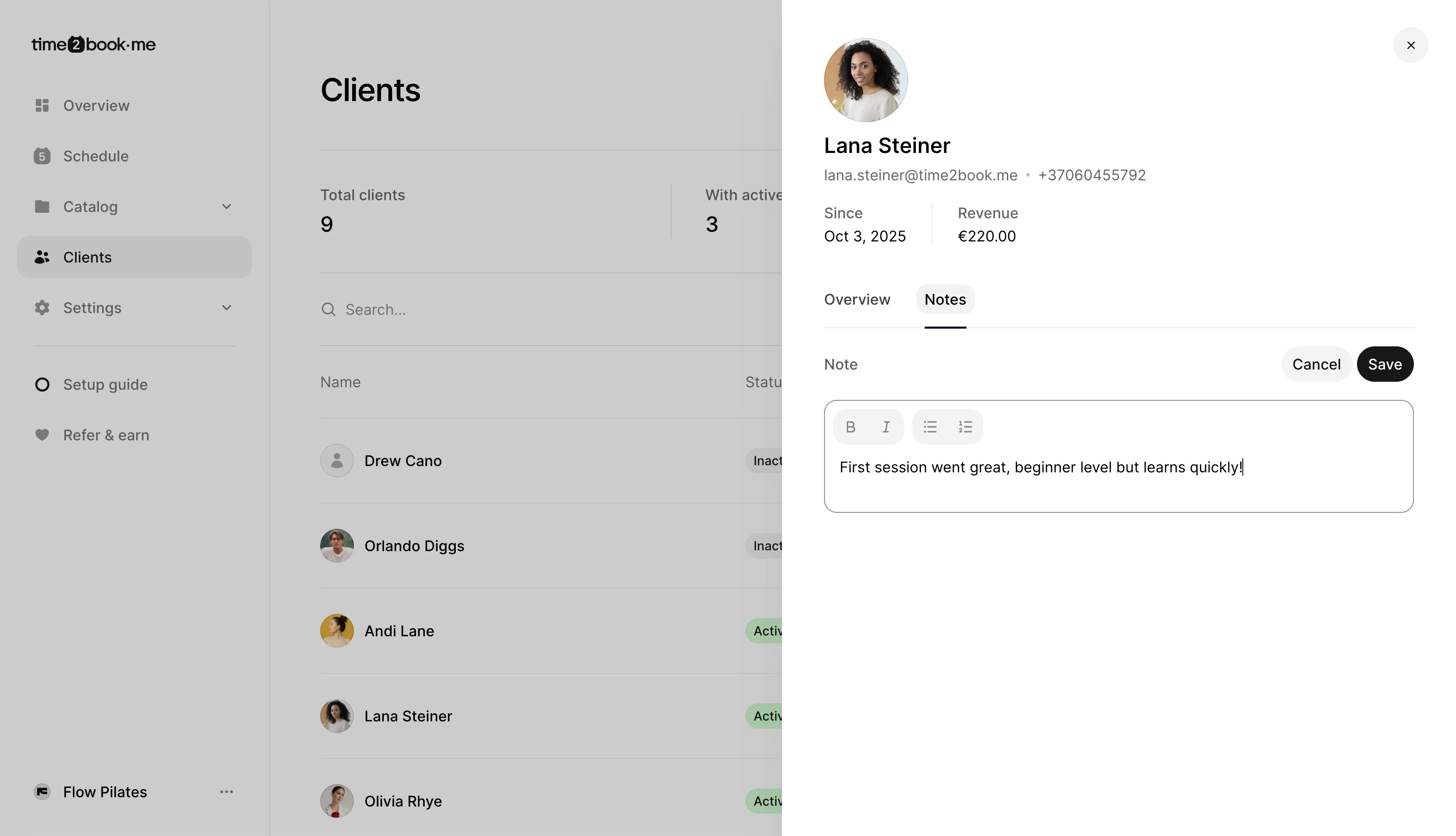
Step 3: Add a note
-
Click button +Add, which will show notes field.
-
Write your note (e.g., “First session went great, beginner level but learns quickly”)
-
Click Save.
Your note will be saved to the client profile.
Notes are private and only visible to you and your team, helping you deliver a more personalized experience for every client.