Adding & updating a payment method
Save a card to your account to pay for bookings faster. Memberships you pay for in person at a business can also start renewing automatically with it.
Step 1: Open Payment methods
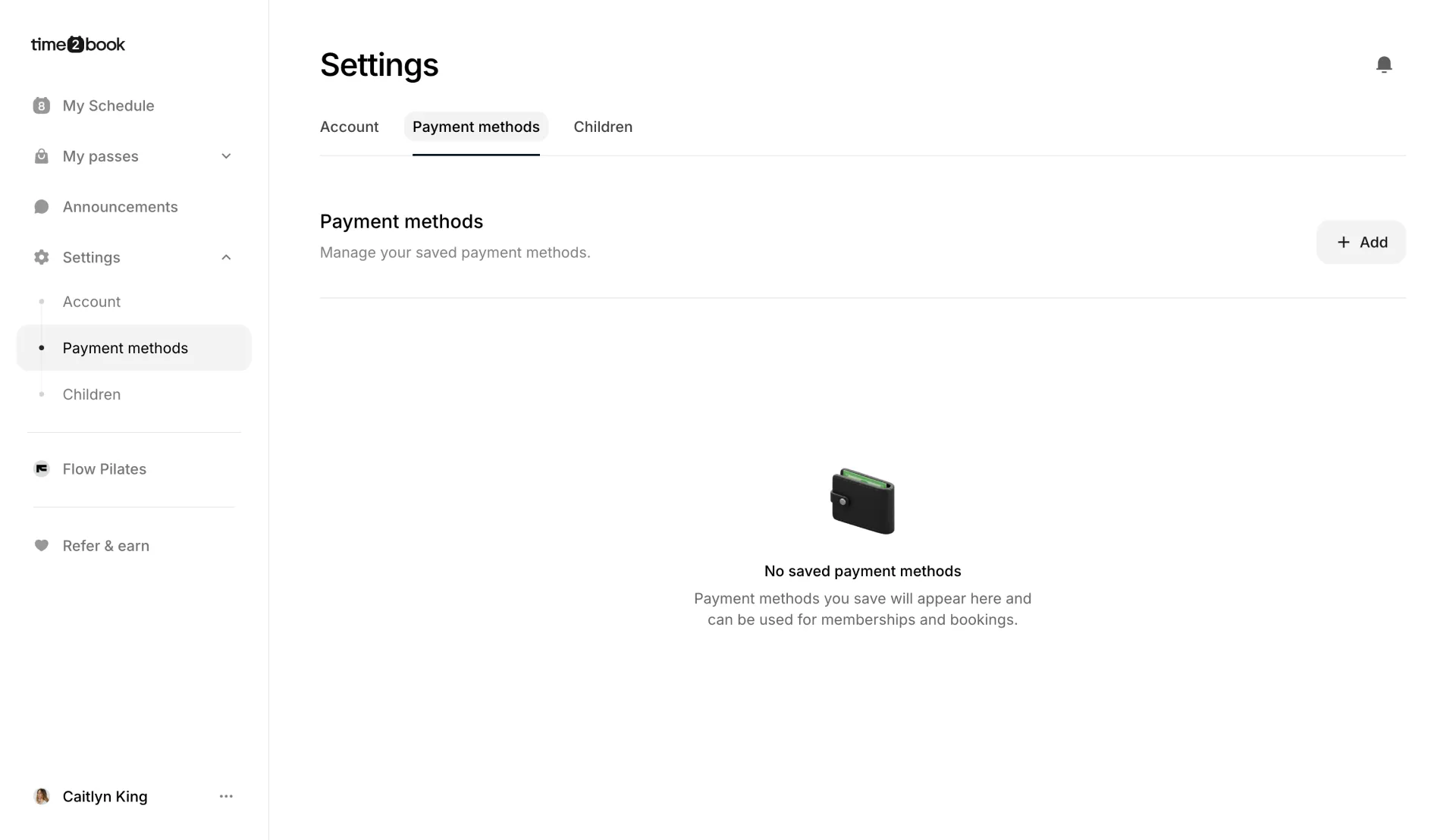
- From the left-hand menu, open Settings → Payment methods.
- You’ll see all your saved cards here. If you haven’t saved any yet, the list is empty.
Step 2: Add a card
- Click Add.
- Enter your Card number, Expiration date and Security code.
- Select your Country.
- Click Save payment method.
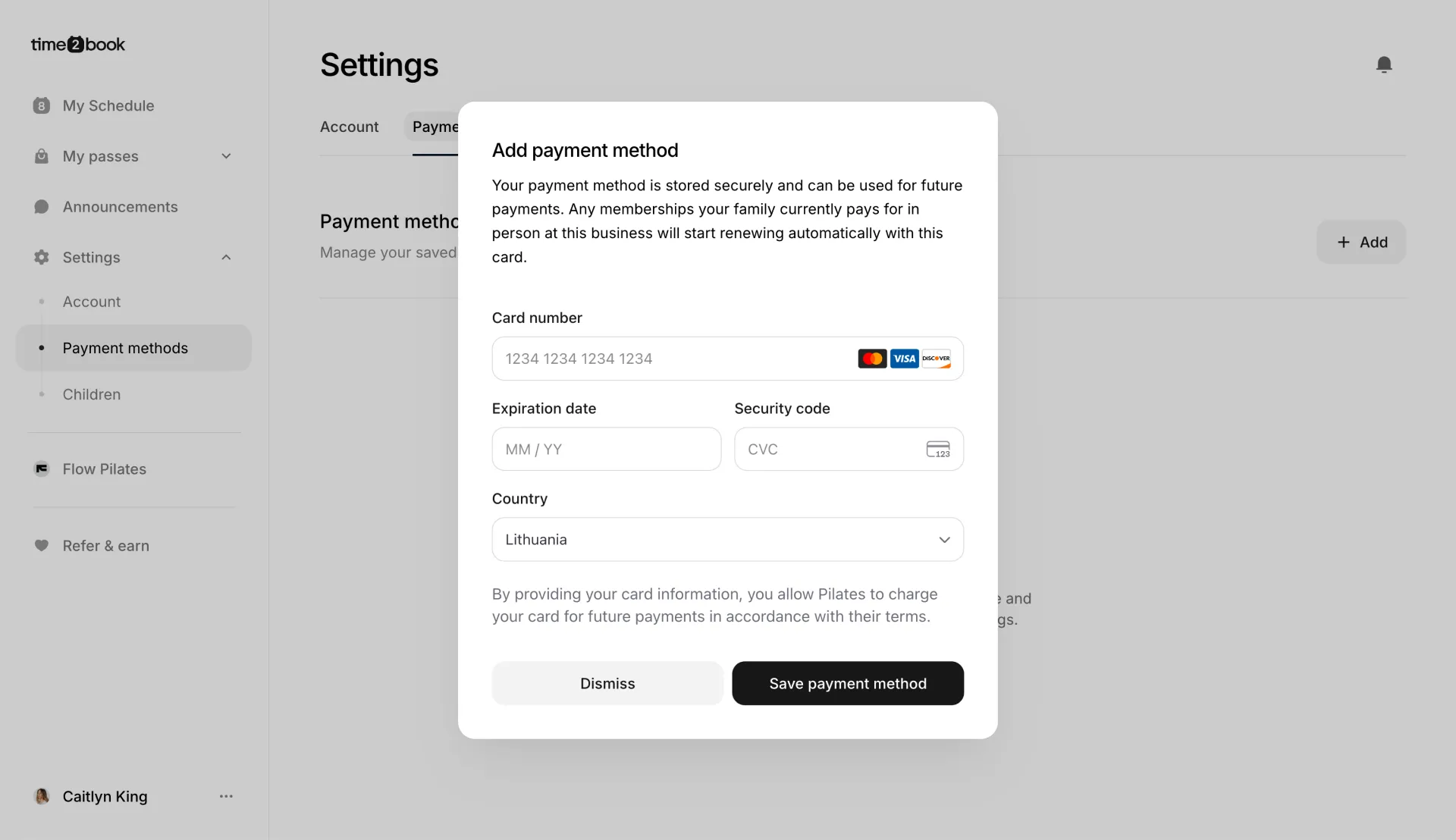
Your card is stored securely. By saving it, you allow the business to charge it for future payments in accordance with their terms.
Step 3: Check your saved card
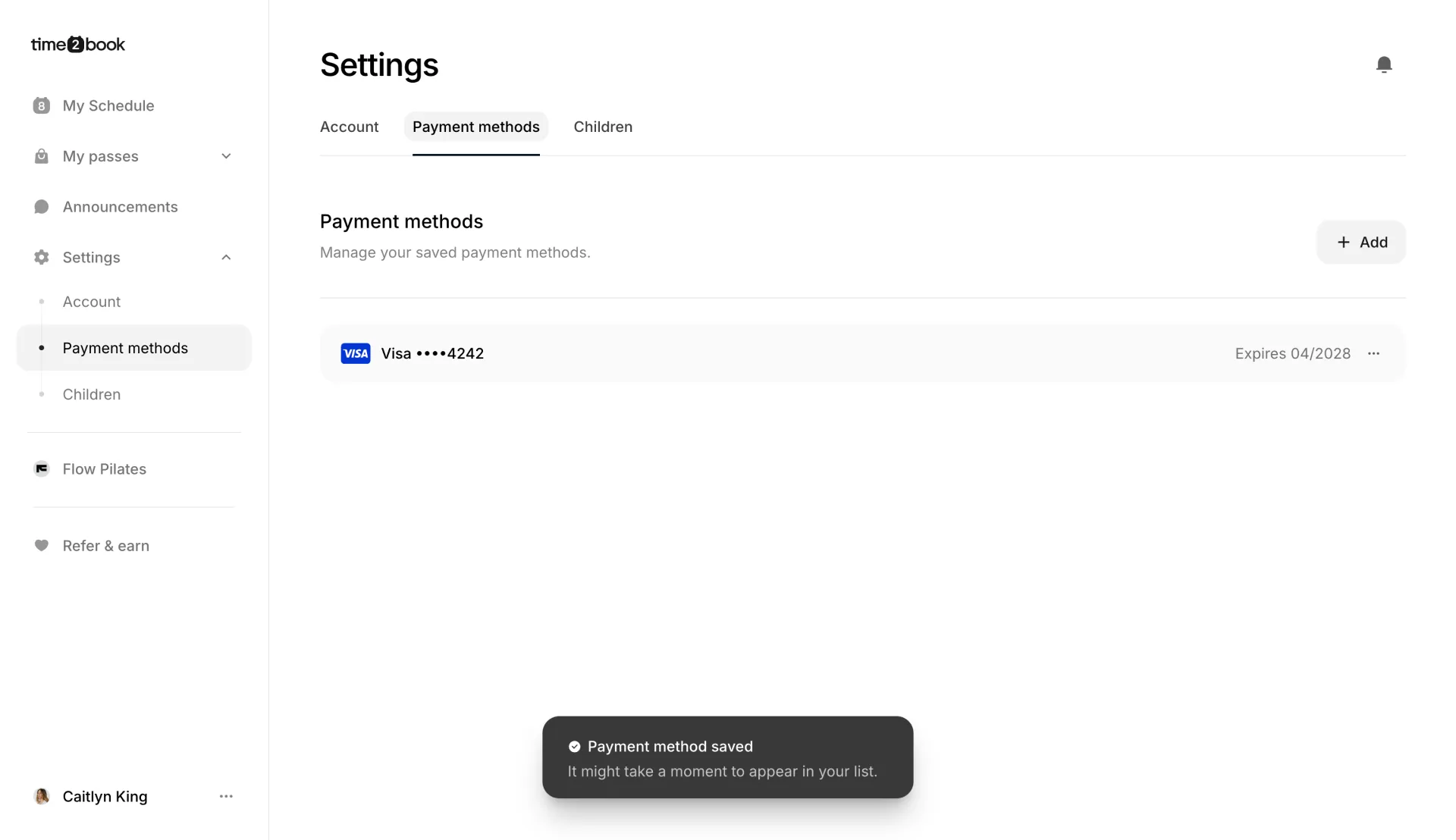
After saving, you’ll see a “Payment method saved” message. The card can take a moment to appear in your list.
Each card shows its brand, the last four digits and its expiry date.
Updating a payment method
If your card has expired or you got a new one, add the new card the same way. Use the ⋯ menu next to a saved card to manage it.
Good to know
Any memberships you or your family currently pay for in person at a business will start renewing automatically with the card you add.