Rescheduling an appointment
Sometimes you may need to move a scheduled appointment to a different time. In Time2book, you can reschedule an appointment directly from your Schedule. The client will be moved to the new time and notified by email automatically.
Step 1: Open Schedule
From the left-hand menu, click Schedule. You’ll see your upcoming appointments and classes listed by date.
Step 2: Open the appointment details
Click the appointment you want to reschedule.
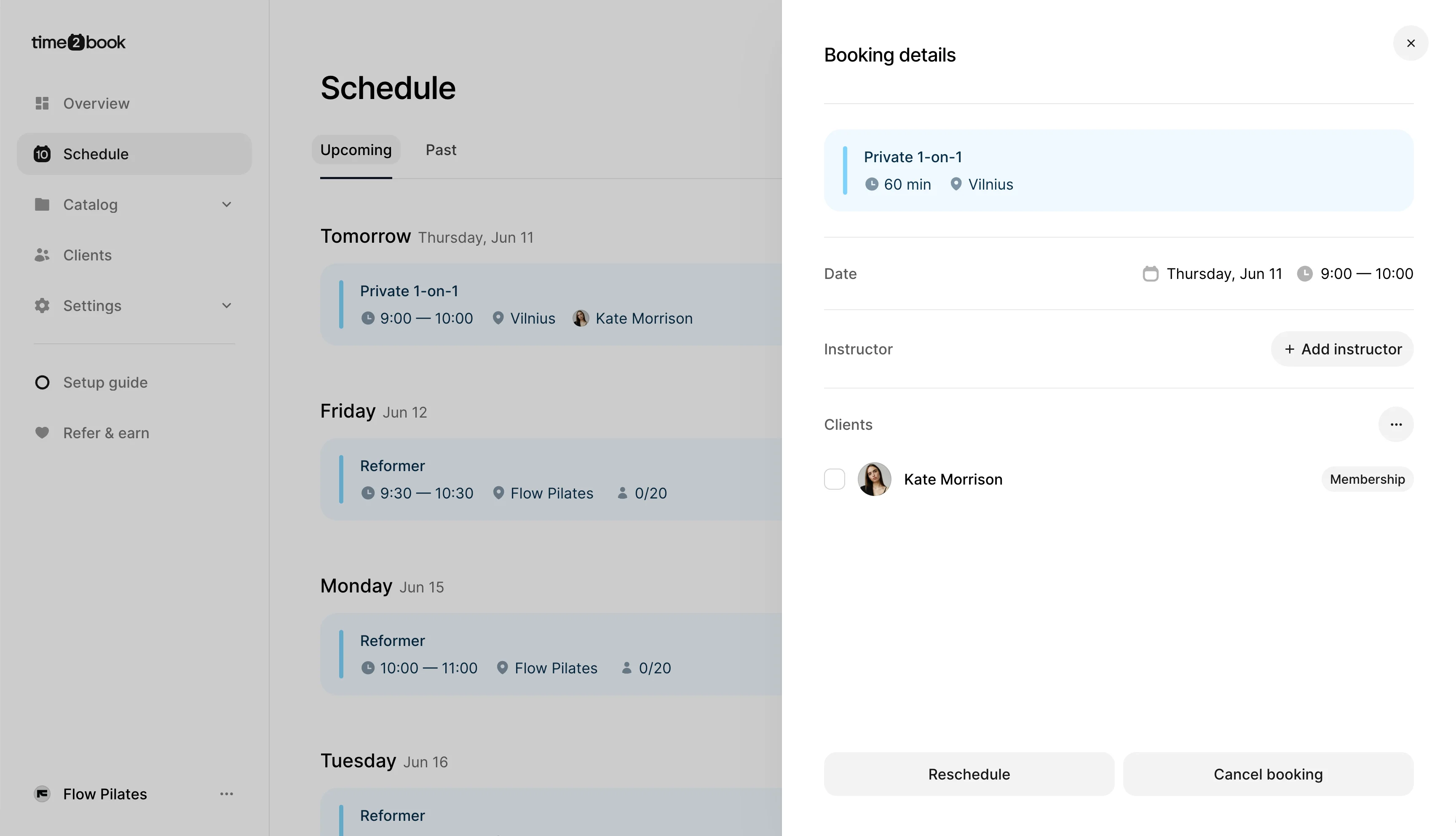
This opens the Booking details panel, where you can see:
- Appointment name
- Date and time
- Instructor
- Client
- Booking actions
Step 3: Click Reschedule and choose a new date and time
At the bottom of the booking details panel, click Reschedule. A reschedule dialog will open.
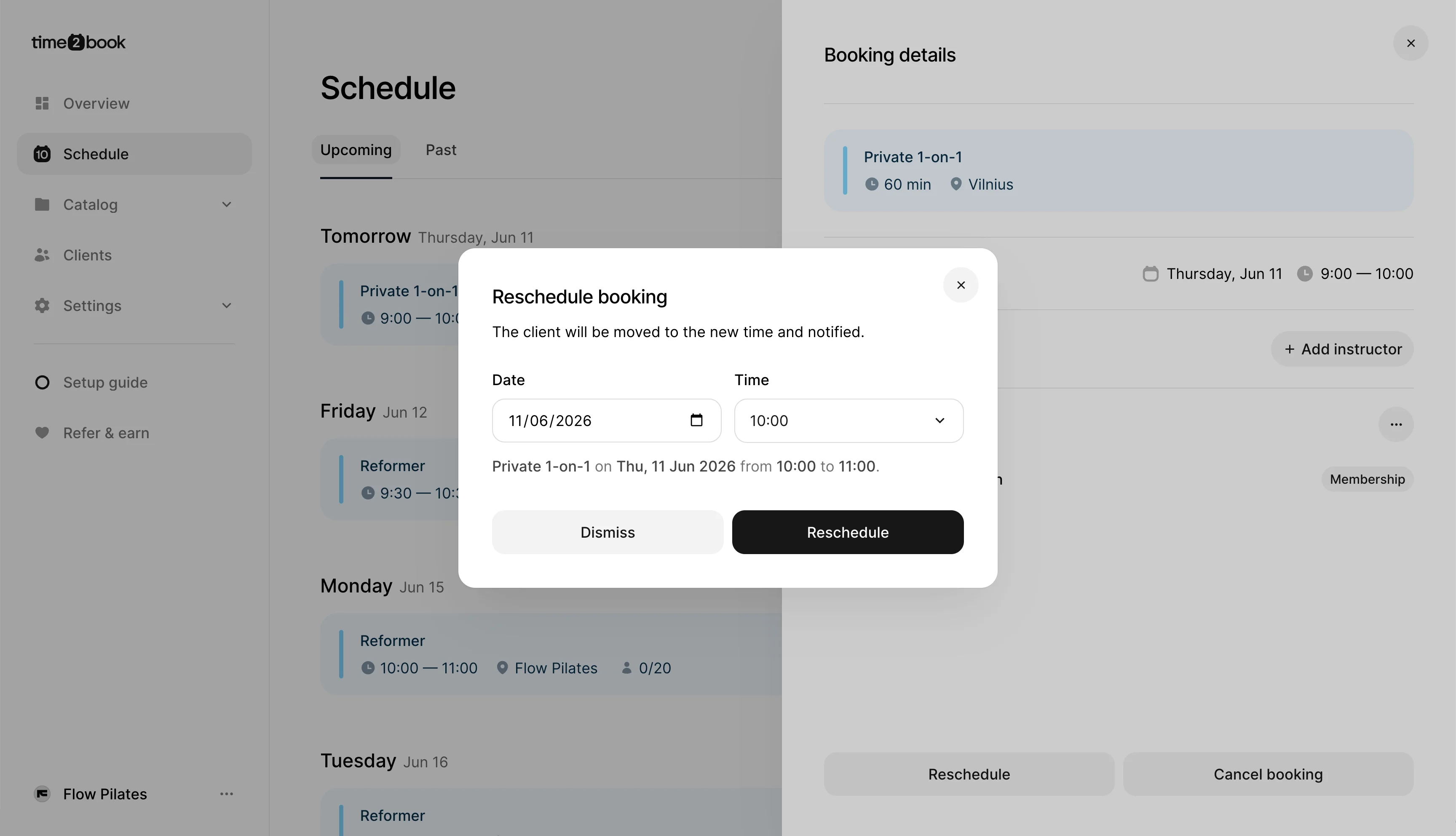
In the Reschedule booking dialog:
- Choose the new date.
- Select the new time.
- Review the updated appointment time shown below the fields.
- Click Reschedule.
The client will be moved to the new time automatically.
Step 4: Client is notified
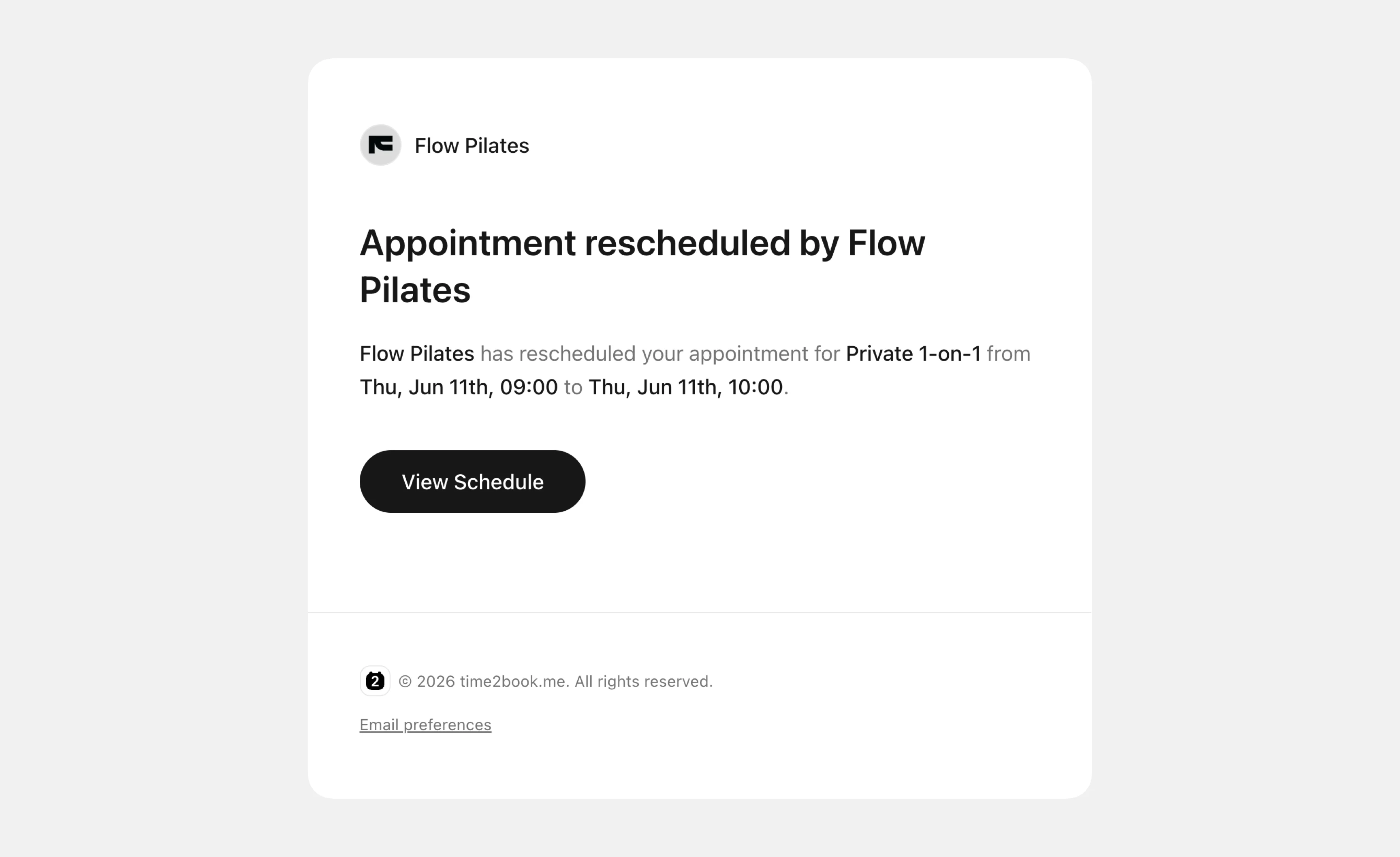
After the appointment is rescheduled, the client booked into the appointment will receive an email notification with the updated time. The appointment will also update in your schedule.
Good to know
Rescheduling is useful when you need to move an appointment because of instructor availability, client requests, holidays, or schedule adjustments.
If you do not want the client to stay booked, you can cancel the appointment instead.