Gift cards
Gift cards let clients buy prepaid credit for someone else. They can choose a gift card from your booking page, send it to a recipient by email, and the recipient can use the gift card code at checkout when booking with your studio.
Step 1: Open Gift cards
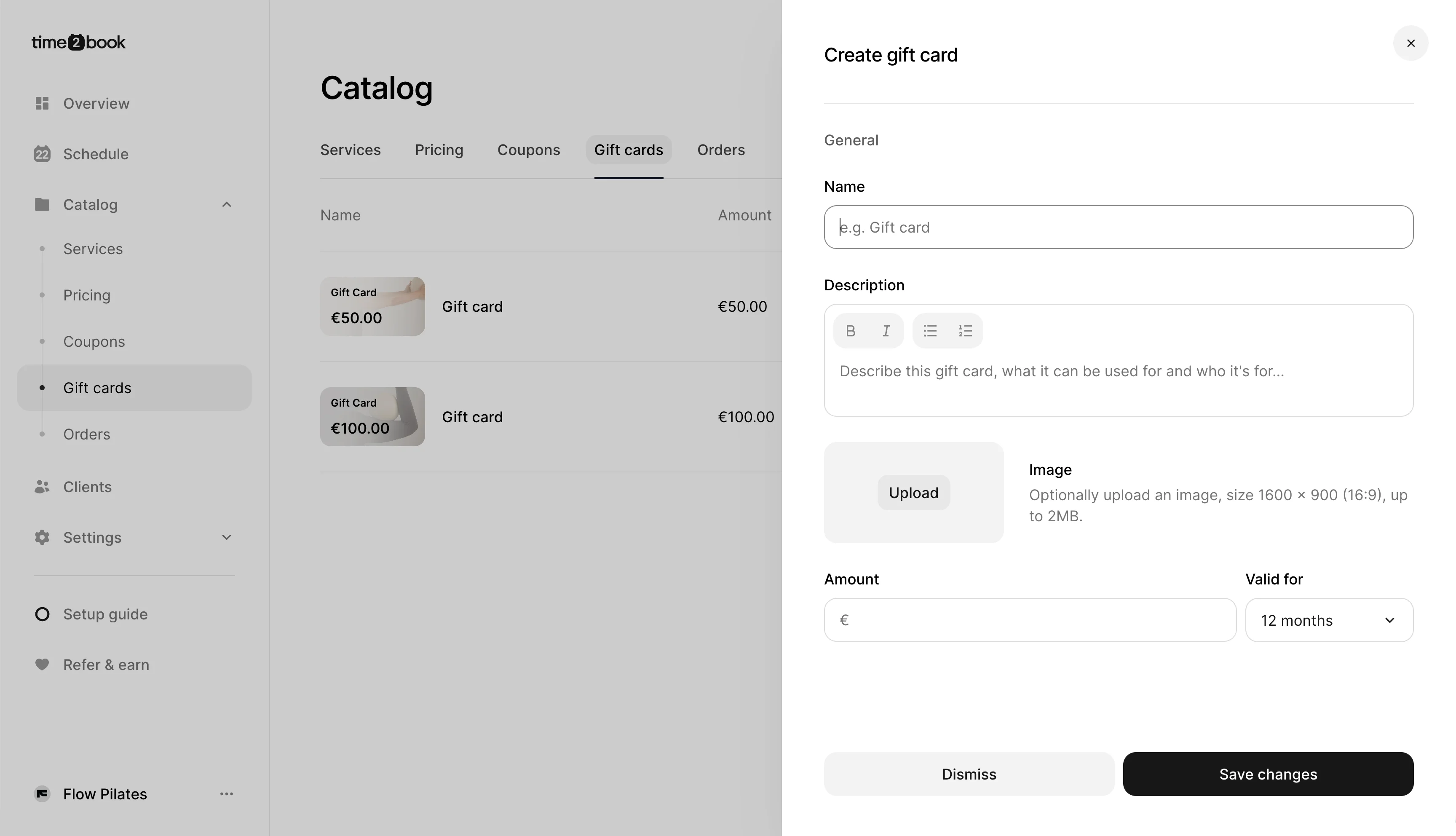
From the left-hand menu, click Catalog. Then open the Gift cards tab. You’ll see all gift cards you’ve created, including their name and amount.
Step 2: Create a new gift card
Click New gift card. This opens the Create gift card panel.
Fill in the gift card details:
- Name – Add a clear name, such as Gift Card or Pilates Gift Card.
- Description – Explain what the gift card can be used for.
- Image – Optionally upload an image. Recommended size is 1600 × 900.
- Amount – Set the value of the gift card.
- Valid for – Choose how long the gift card should be valid after purchase.
When you’re done, click Save changes.
Step 3: Gift cards appear on your booking page
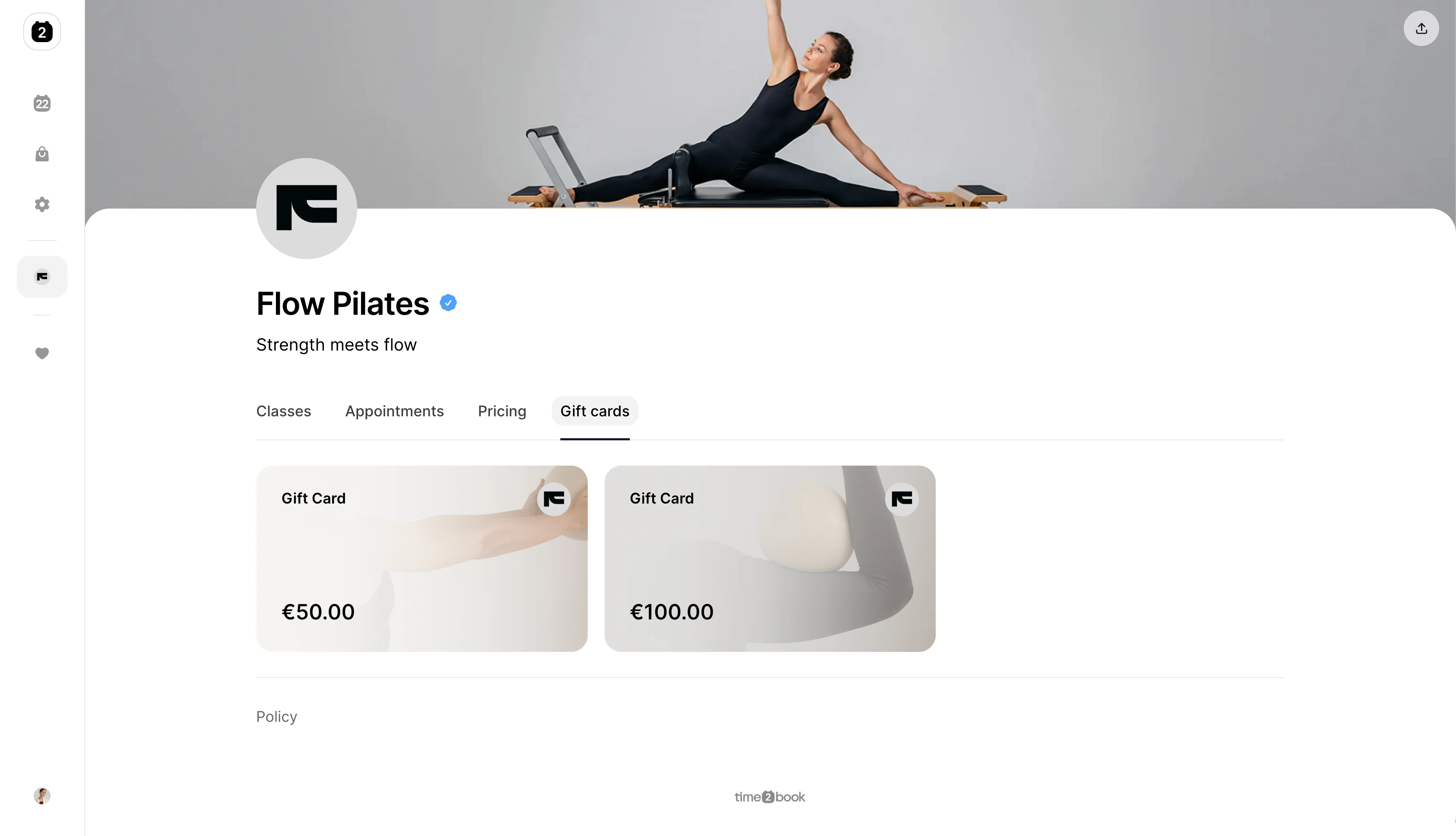
Once saved, the gift card will appear on your public booking page under the Gift cards tab. Clients can open this tab, choose a gift card amount, and purchase it online.
Step 4: Client buys the gift card
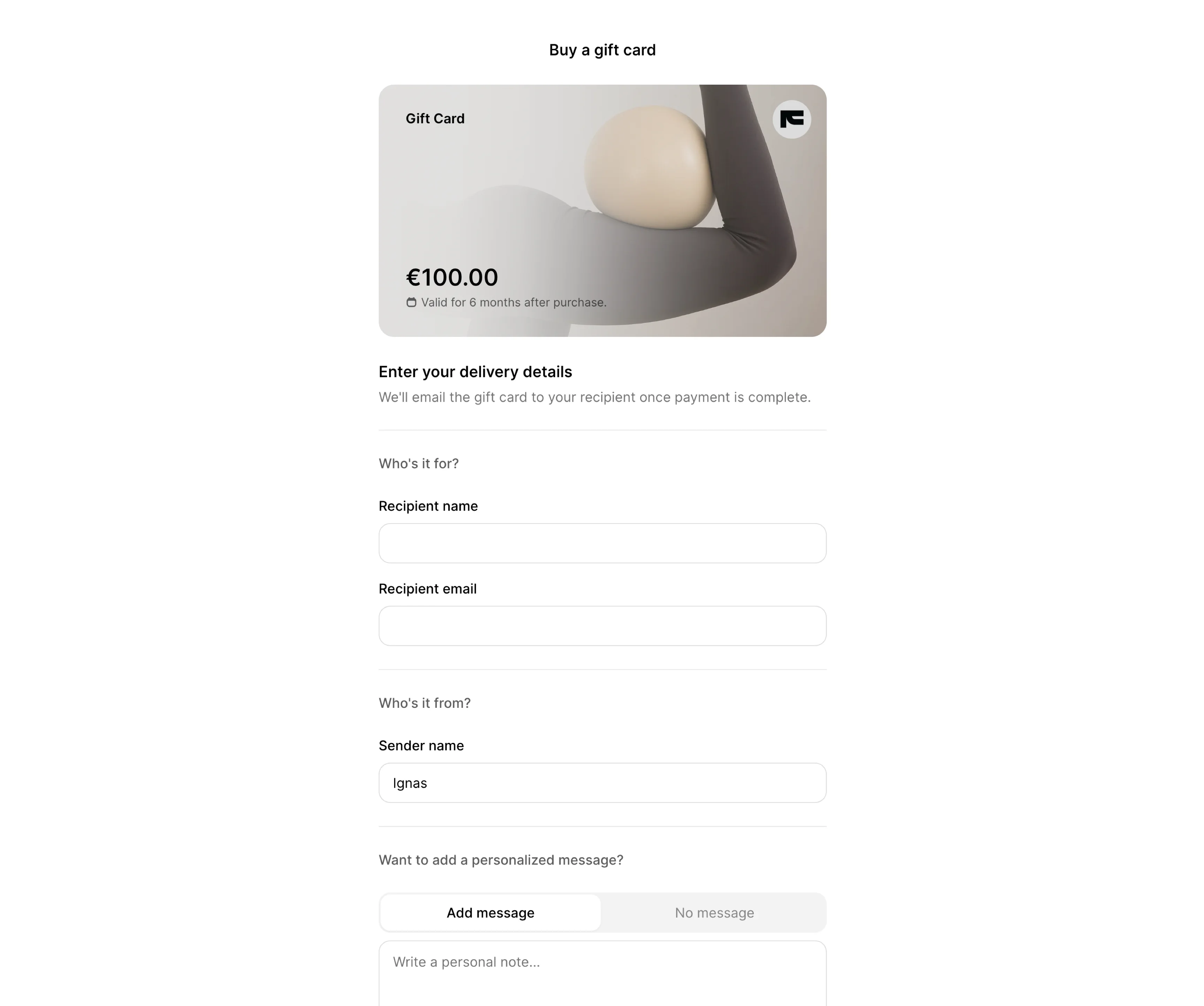
When buying a gift card, the client enters:
- Recipient name
- Recipient email
- Sender name
- Optional personal message
- Payment details
After payment is complete, the gift card is emailed to the recipient automatically.
Step 5: Recipient receives the gift card by email
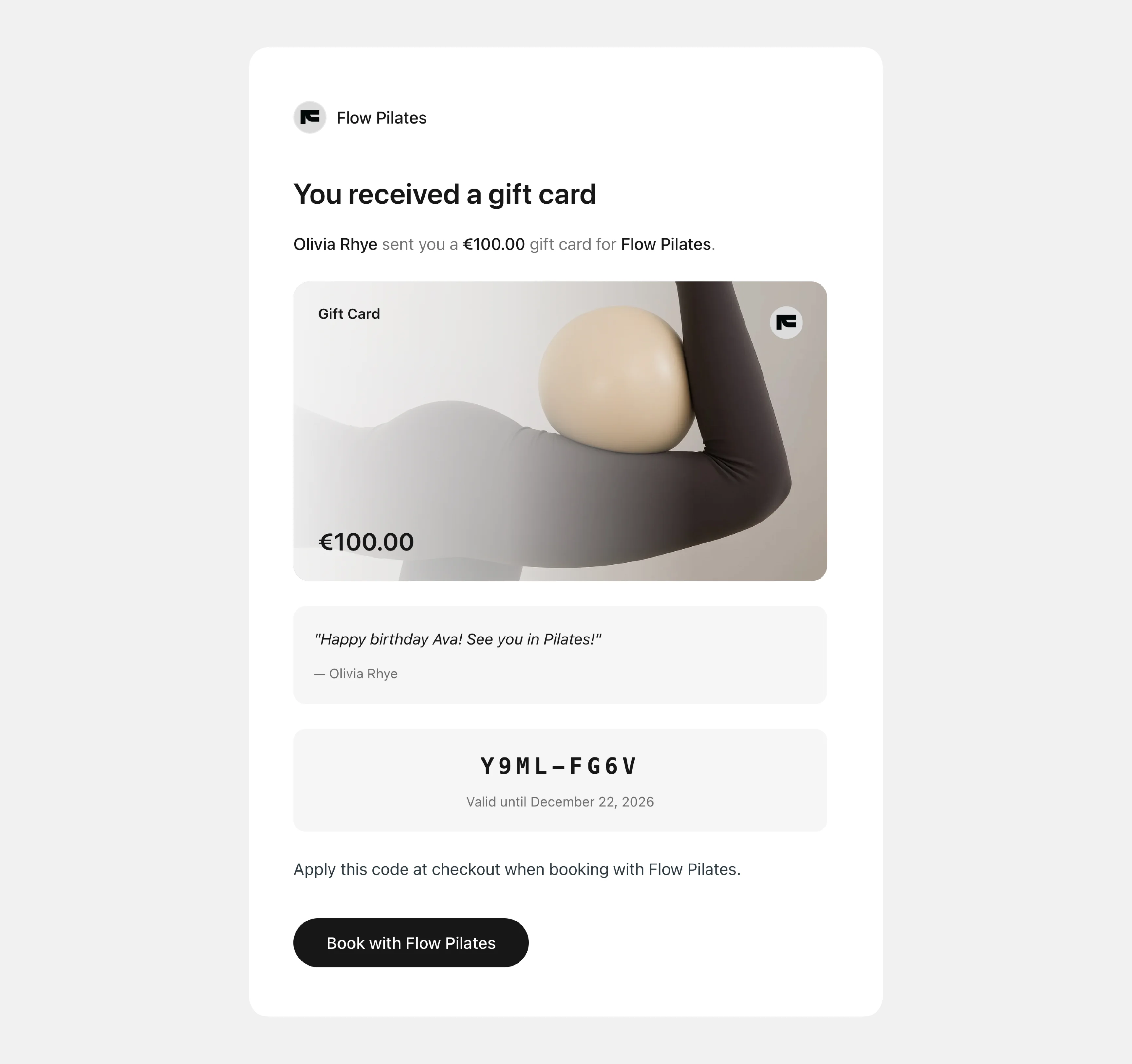
The recipient receives an email with:
- Gift card amount
- Personal message, if added
- Gift card code
- Expiration date
- Button to book with your studio
They can copy the code and apply it at checkout when booking.
Step 6: Buyer sees confirmation
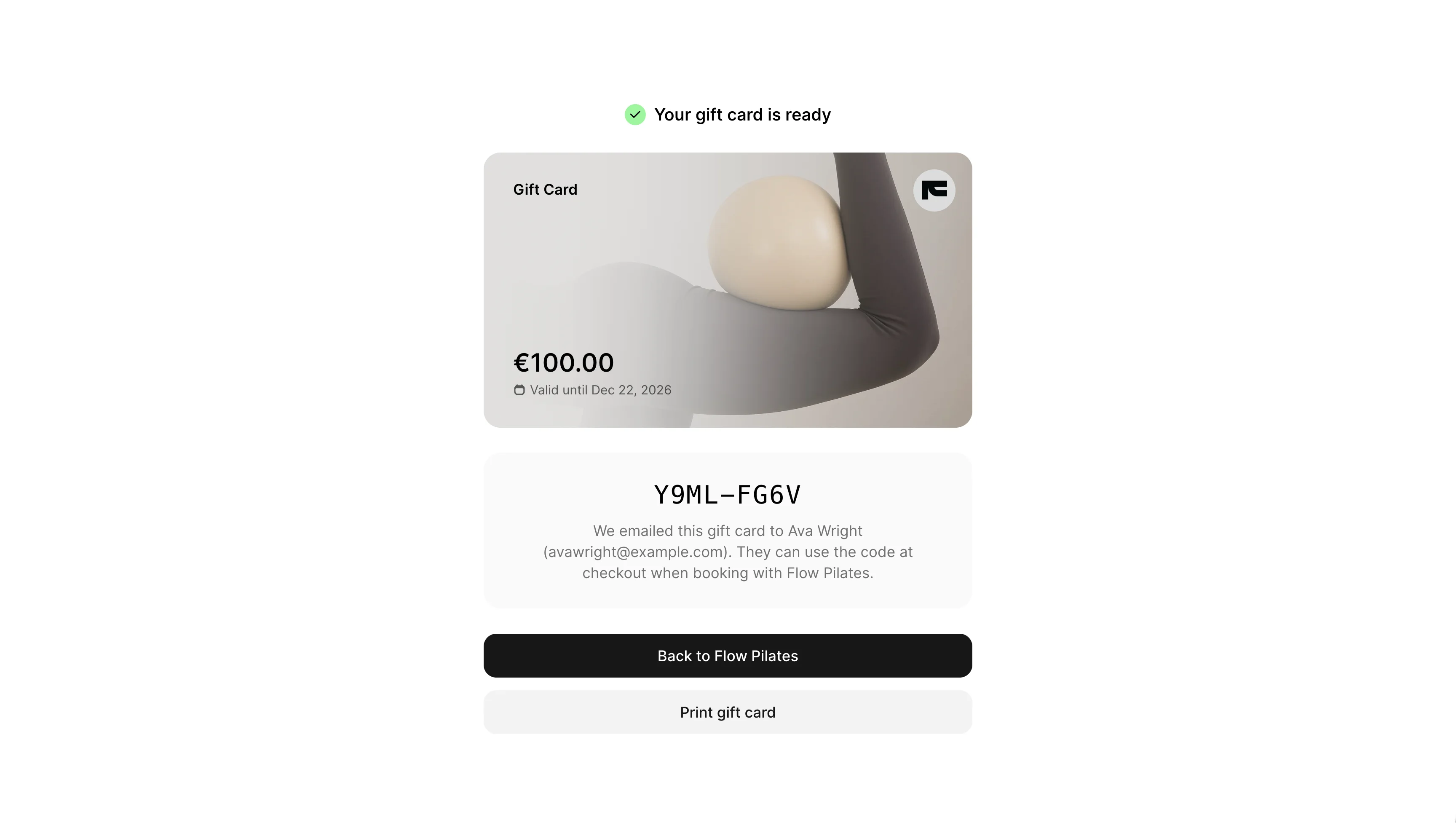
After purchase, the buyer sees a confirmation page with the gift card code and delivery details. They can also print the gift card if they want to give it in person.
Step 7: Review gift card purchases
You can also review who purchased each gift card.
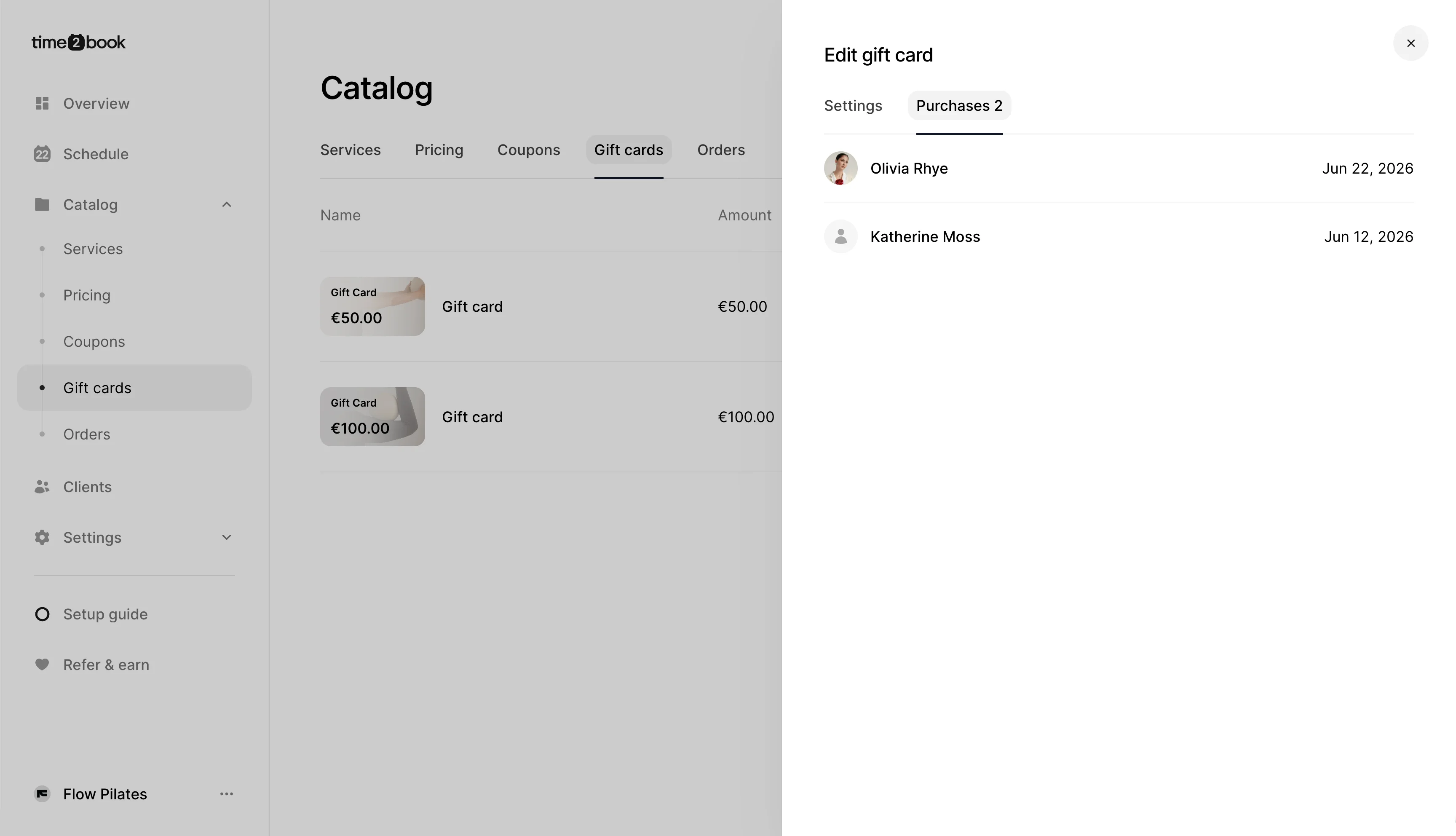
From Catalog → Gift cards, click the gift card you want to review.
This opens the Edit gift card panel. At the top, switch from Settings to the Purchases tab.
Here you can see:
- Client name
- Purchase date
- Number of purchases for this gift card
Step 8: View gift cards in a client profile
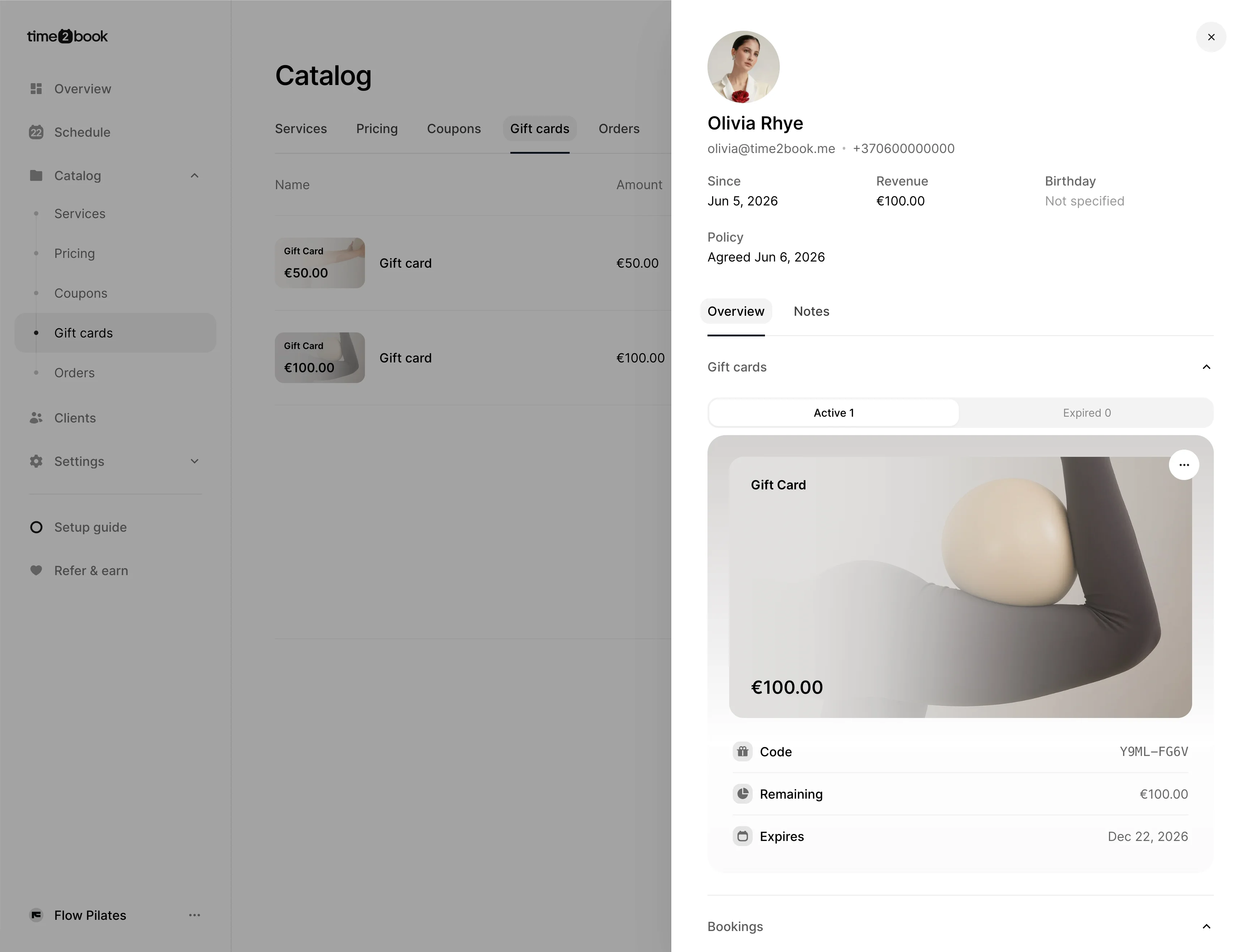
You can also preview gift cards from an individual client profile. Click a client from the Purchases list, or open the client from the Clients section. In the client details panel, open the Overview tab and scroll to Gift cards.
Here you can see the client’s gift cards, including:
- Gift card code
- Remaining balance
- Expiration date
- Active or expired status
How clients use a gift card
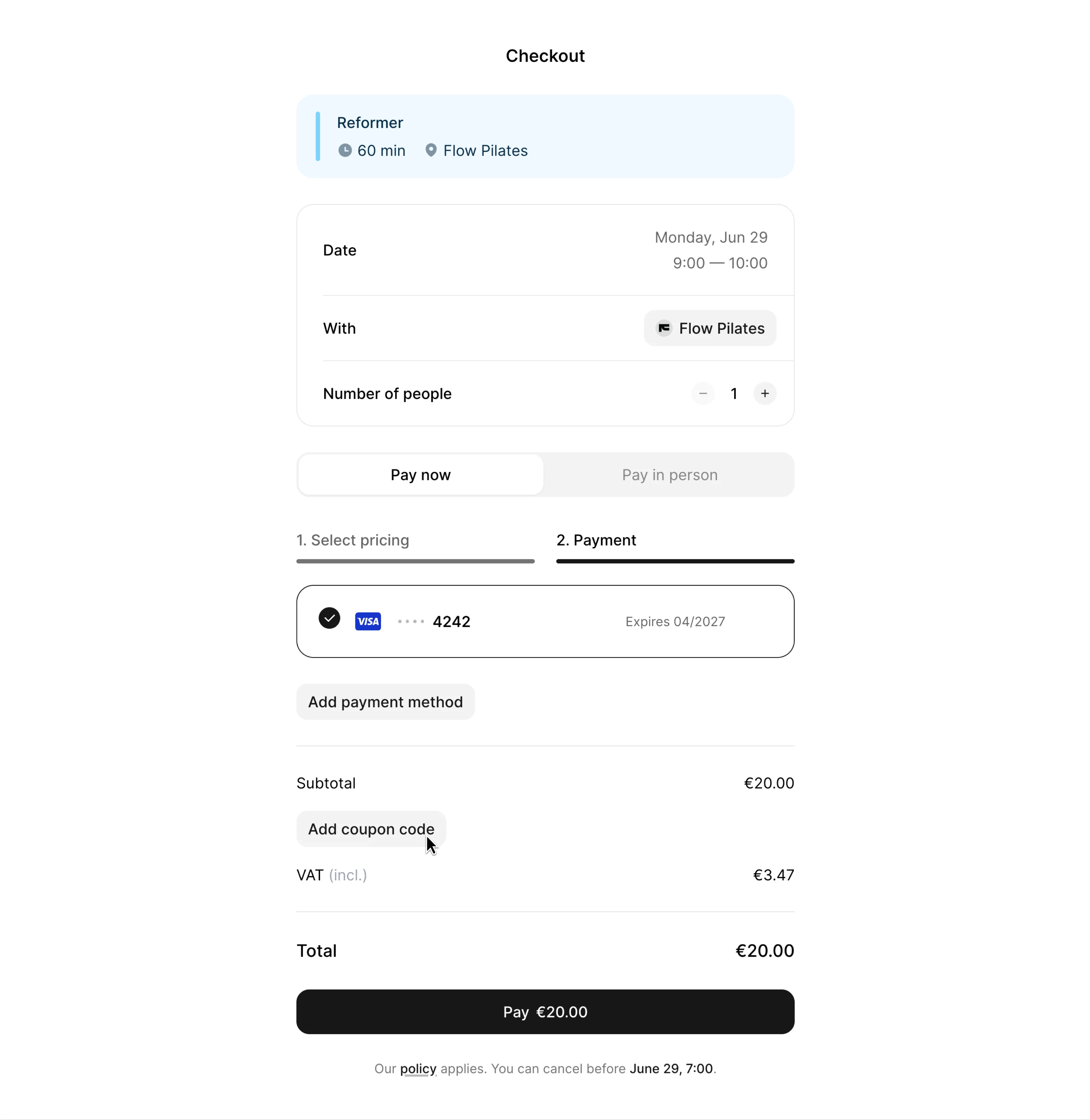
To use a gift card, the recipient books a class or appointment as usual. At checkout, they enter the gift card code. The gift card value is then applied to the booking.
Good to know
You can create multiple gift cards with different amounts, such as €50 and €100. Gift cards are useful for birthdays, holidays, studio promotions, and clients who want to share your classes with friends or family.