Booking for multiple people
Clients can book a class for themselves and bring one or more guests. This is useful when a client wants to reserve spots for friends, family members, or other participants in the same session.
Step 1: Choose a class
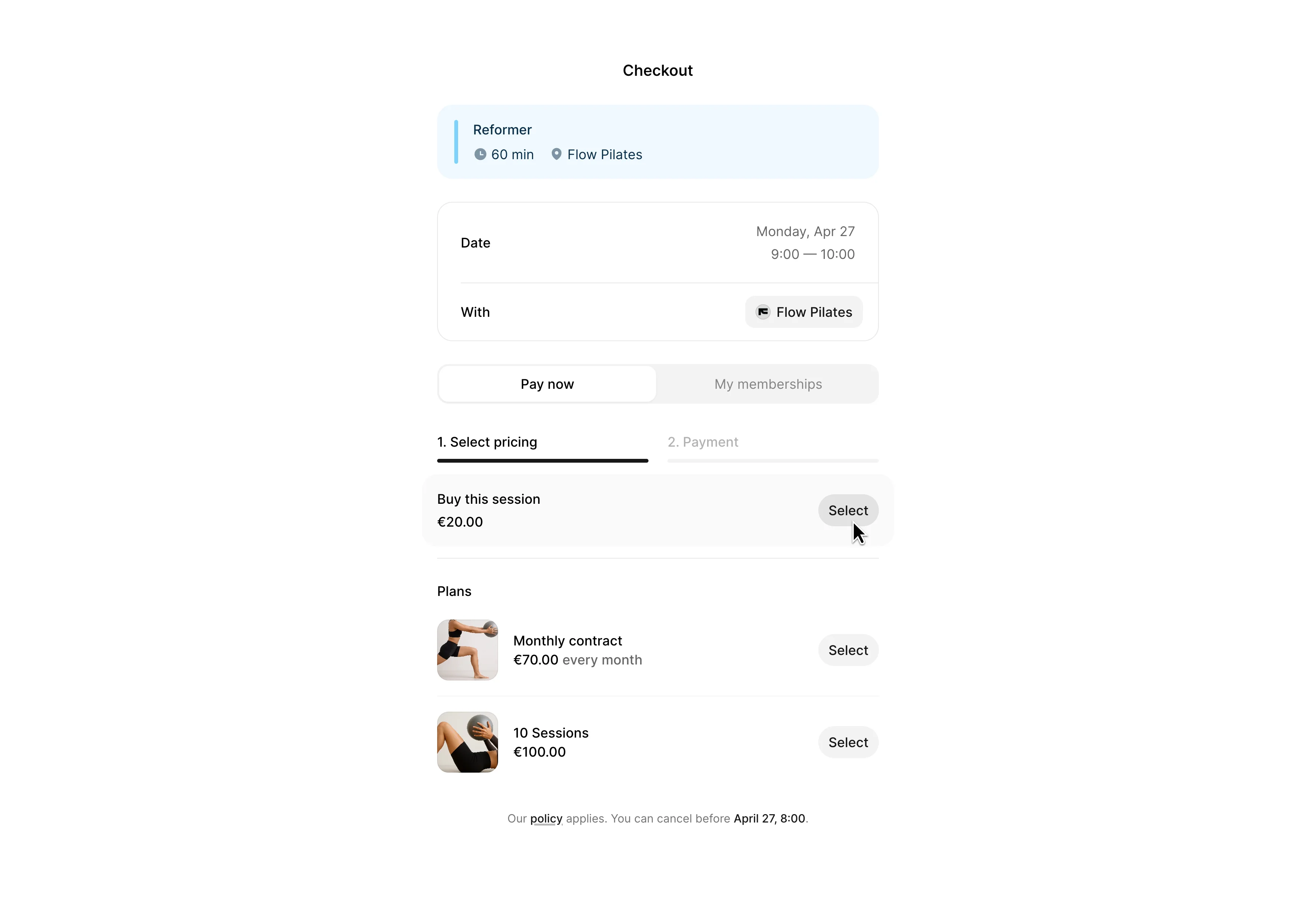
Booking for multiple people is available when the client selects a drop-in session. The client starts by selecting a class from your booking page and choosing Buy this session in checkout.
Step 2: Set the number of people
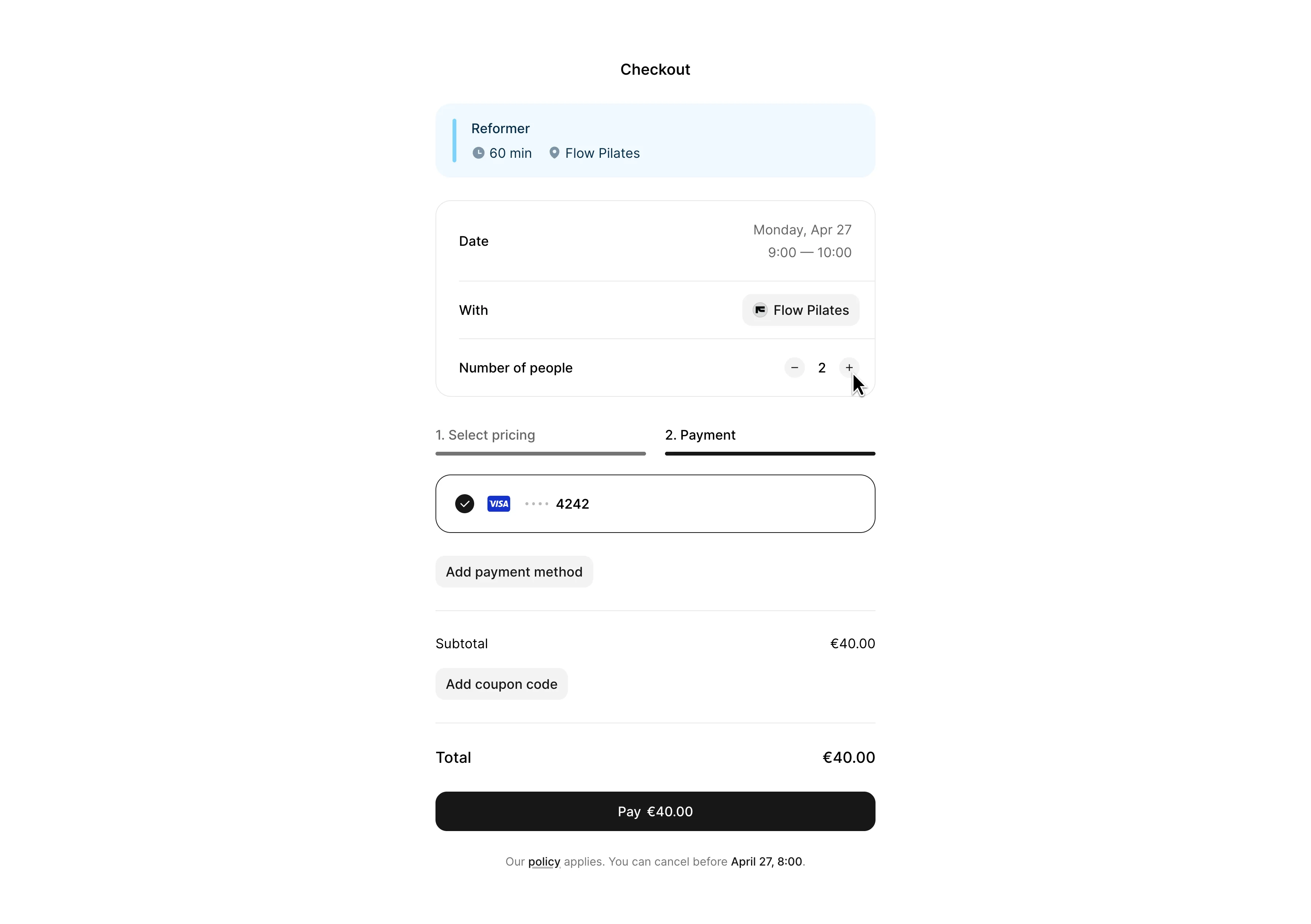
In the second checkout step, the client can adjust the Number of people.
For example, if they choose 2, the booking will include:
- 1 spot for the client
- 1 guest spot
The total price updates based on the number of people selected.
Step 3: Complete payment
Once the number of people is selected, the client completes payment as usual. After payment, all selected spots are reserved in the class.
How clients see the booking
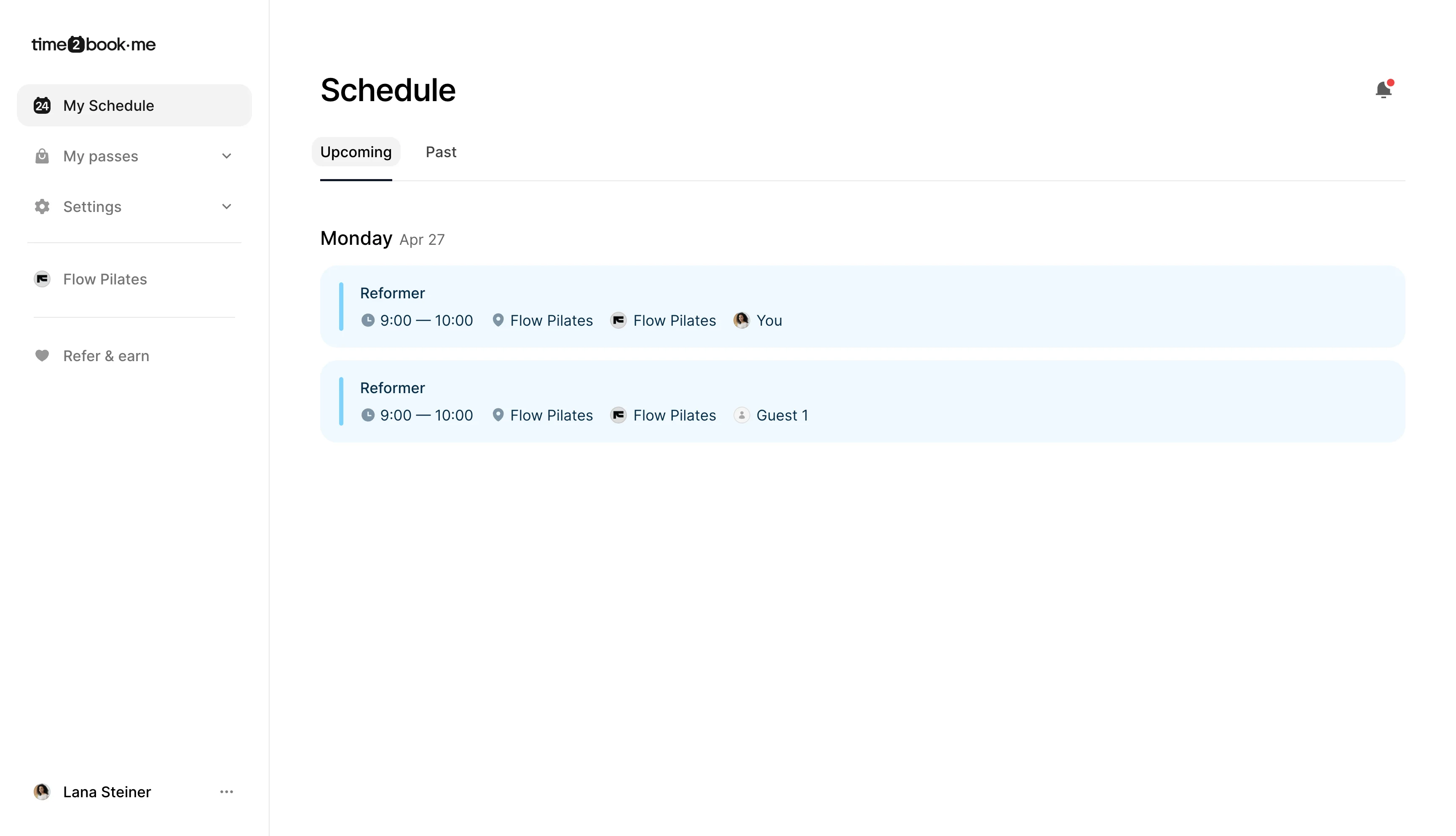
In the client’s schedule, the booking appears as separate entries:
- One for the client
- One for the guest
This makes it clear that both spots have been booked.
How businesses see the booking
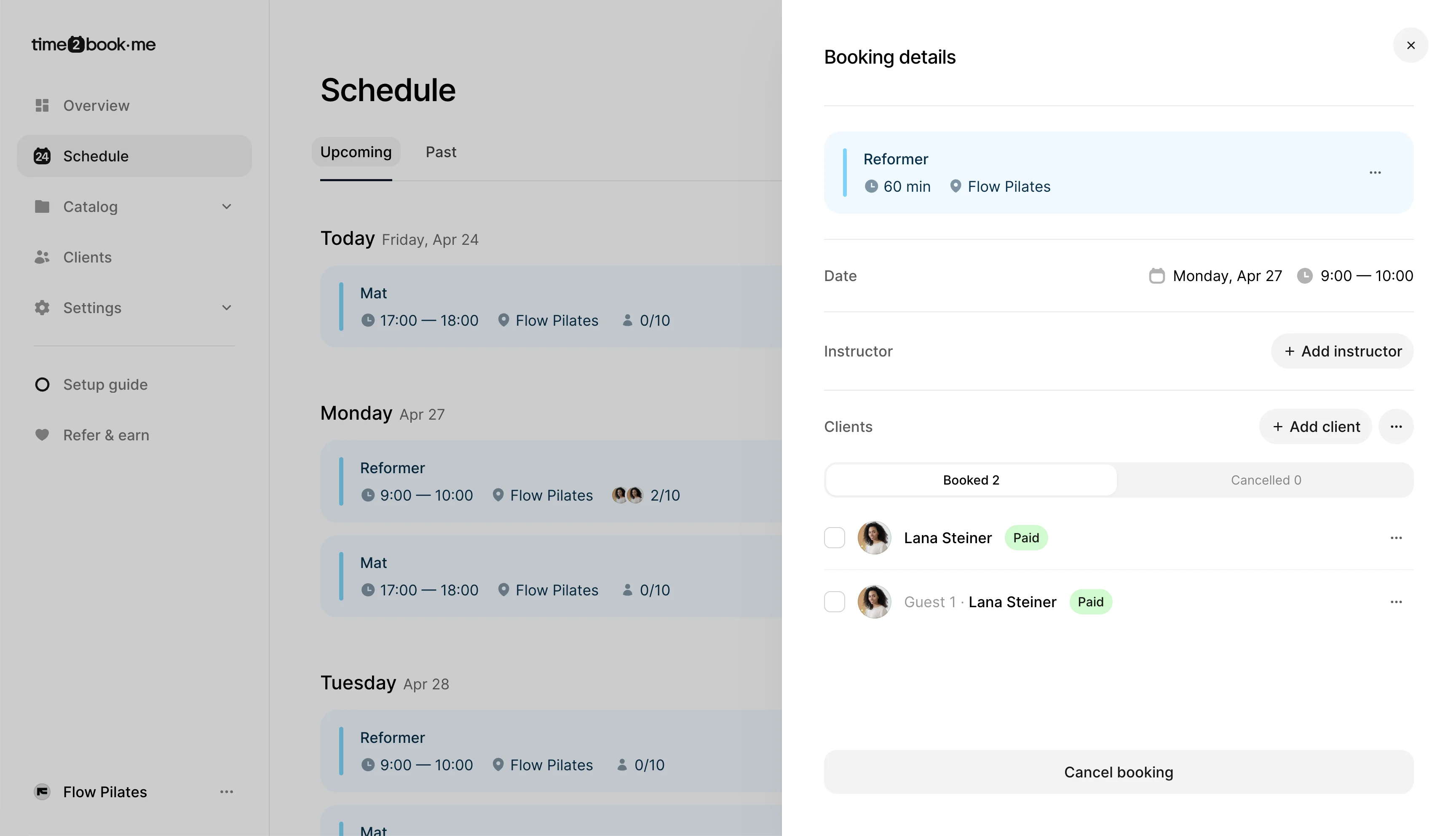
In your business schedule, the class will show the total number of booked spots.
When you open the class, you’ll see the client and their guest listed separately. Guest bookings are shown as Guest 1 · Client name, so it’s easy to understand who booked the extra spot.
Good to know
Each guest counts toward the class capacity. For example, if a client books for 2 people, it uses 2 available spots in that class.
This helps keep your schedule, capacity, and attendance list accurate.