Add an instructor to a class
You can assign instructors to your classes so clients know exactly who will be teaching each session. In Time2book, instructors can be added either while scheduling a class or after the class is already scheduled.
Once an instructor is assigned, their name will be visible to clients in your public booking profile.
Option 1: Add an instructor while scheduling a class
Step 1: Open the schedule
- From the left-hand menu, click Schedule.
- Click the + button in the top-right corner to add a new class.
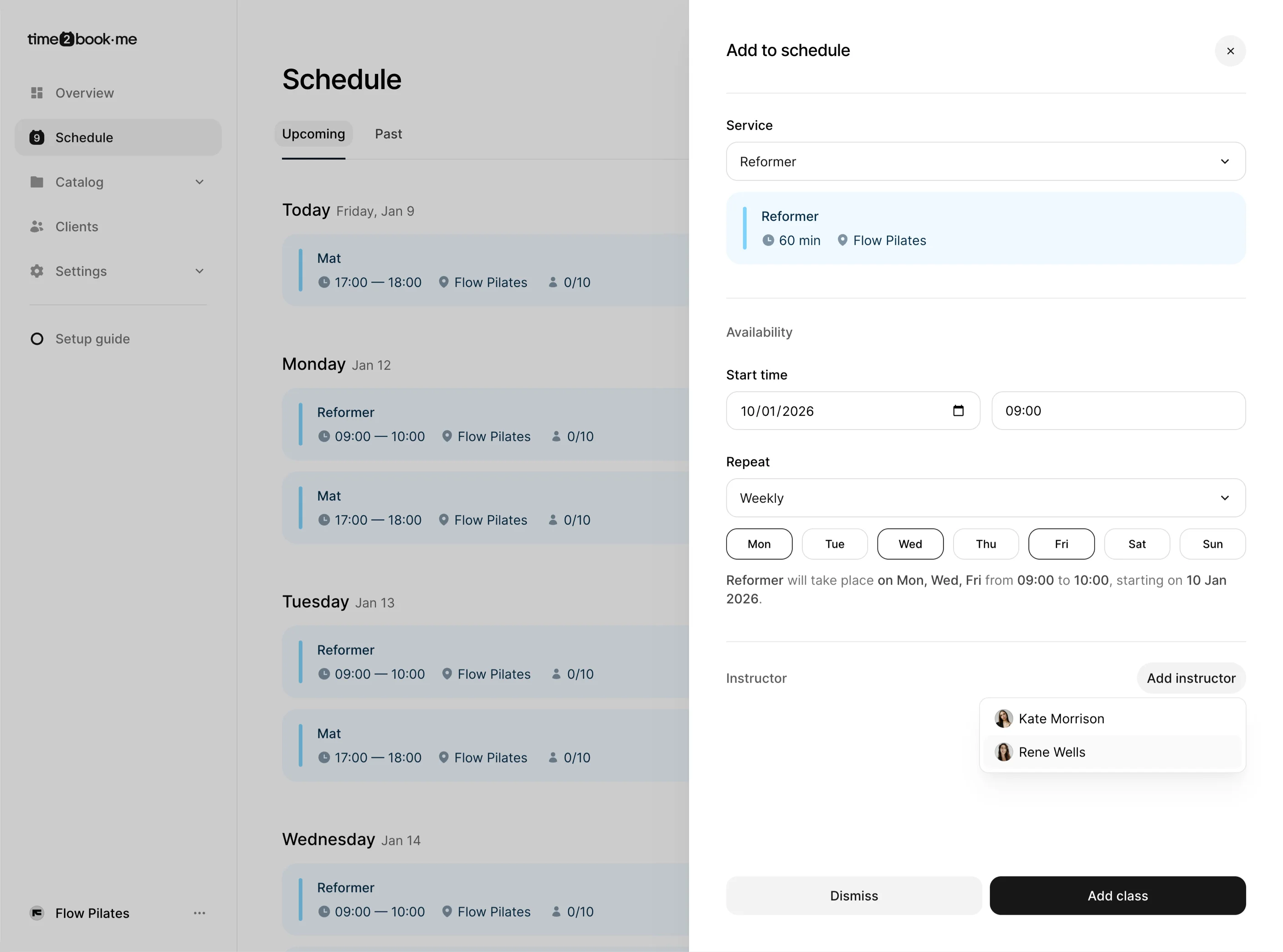
Step 2: Select service and time
- Choose the service (class) you want to schedule.
- Set the start date, time, and repeat options if needed.
Step 3: Add an instructor
- In the Instructor section, click Add instructor.
- Select one or more instructors from your team.
Only invited team members can be assigned as instructors. Learn how to invite team members.
Step 4: Create the class
- Review the class details.
- Click Add class to save it to your schedule.
The instructor is now assigned to this class.
Option 2: Add or change an instructor for an existing class
Step 1: Open the class
- Go to Schedule.
- Click on the class you want to edit.
The booking details panel will open.
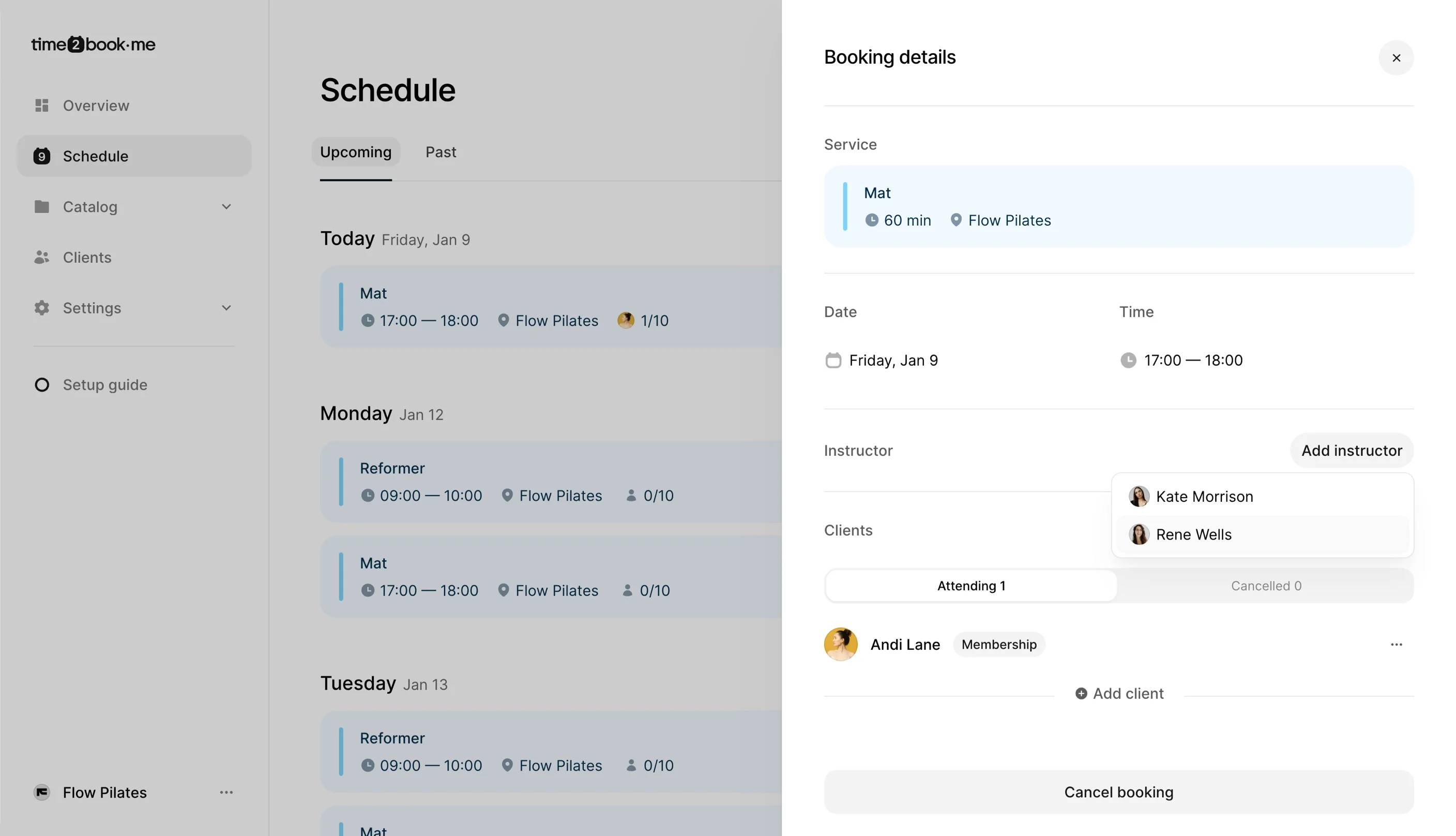
Step 2: Add or change instructor
- In the Instructor section, click Add instructor.
- Select a different instructor or add another one from your team.
Changes are saved automatically.
Instructor visibility for clients
Once an instructor is assigned:
- Clients will see the instructor’s name on your public booking profile
- Each class clearly shows who is teaching it
- This helps set expectations and builds trust with clients

That’s it
You’ve successfully added an instructor to a class.You can update instructors anytime from your schedule, and clients will always see the latest information when booking.